There isn't one "Slack + Salesforce integration" — there are three, and most teams end up using more than one. The native Salesforce for Slack app (free, no code) covers record previews, notifications, and quick record updates inside Slack, and takes an admin roughly 30–60 minutes to stand up. Zapier or Make cover workflows the native app doesn't expose as a trigger, or that also touch other apps. A custom API/webhook integration (Named Credentials + Apex, or Platform Events) is for teams that need business logic the first two can't express, or that are already deep in Salesforce automation.
Whichever path you pick, two things trip teams up more than anything else: permission sets that were never actually assigned to the right profile, and assuming the integration works on Salesforce Government Cloud (it doesn't).
| Question | Short answer |
|---|---|
| Fastest way to connect | Native "Slack Apps Setup" wizard in Salesforce Setup — no code, ~30–60 minutes |
| Minimum Salesforce edition | Enterprise, Unlimited, or Developer for the full app; Standard covers the lighter "Salesforce Channels" feature only; Essentials needs the API Access add-on |
| Minimum Slack plan | Free or Pro works for basic record sharing; Business+ or Enterprise+ unlocks deeper CRM features, swarming, and premium security controls |
| Who approves the connection | A Salesforce System Administrator and a Slack workspace owner or approved admin |
| Government Cloud support | Not supported — use the API/webhook path if you're on Gov Cloud |
| When you need Zapier or Make instead | Cross-app workflows beyond Slack and Salesforce, or triggers the native app doesn't expose |
| When you need the API/webhook path | Custom business logic, high message volume, or tight coupling with existing Apex/Flow automation |
What This Integration Actually Does
"Connect Slack to Salesforce" covers more ground than most searches assume. At the core, it's a set of features — not one toggle — that Salesforce and Slack have built together since Salesforce's 2021 acquisition of Slack, and expanded again through 2025 and 2026 with tighter AI and Agentforce integration. In practice, teams use it for four things: pushing real-time notifications into Slack channels when a record changes (a deal closes, a case escalates, a lead comes in above a value threshold); previewing and searching Salesforce records without leaving Slack; updating records — closing a task, changing a stage — directly from a Slack message; and, as of the newest "Salesforce Channels" feature, sharing live records inside a channel that both your team and an external partner or customer can see.
On top of that base layer, Salesforce has been pushing Agentforce agents into Slack throughout 2026 — letting an AI agent configured in Salesforce answer questions or take actions directly inside a Slack conversation, which is a distinct setup path covered later in this guide.
None of that requires custom development. What does require more effort — automation platforms or custom API work — is anything the native app doesn't expose as a built-in trigger: routing based on complex multi-field logic, syncing with apps beyond Slack and Salesforce, or triggering from events the app doesn't watch. That's the decision this guide walks through, method by method.
Prerequisites: What You Need Before You Start
Before opening Salesforce Setup, confirm you actually meet the requirements — this is the step most troubleshooting threads trace back to.
- Salesforce edition: Enterprise, Unlimited, or Developer edition gives you full API access and the complete Salesforce for Slack feature set. Essentials edition needs the separate API Access add-on purchased first. If you're only on Standard edition, you still get the lighter "Salesforce Channels" feature (embedding live records in a shared channel), but not the full CRM app experience inside Slack.
- Slack plan: Free and Pro ($7.25/user/month as of 2026) cover Salesforce Channels and basic record sharing. Business+ ($15/user/month, up from $12.50 after Slack's 2025 pricing update) and the newer Enterprise+ tier add the deeper CRM app experience, case swarming, and the admin/security controls most IT teams will actually require before rolling this out company-wide.
- Admin access on both sides: a Salesforce System Administrator (or a profile with the "Connect Salesforce with Slack" system permission) to run setup in Salesforce, and a Slack workspace owner or admin to install and approve the app on the Slack side.
- Object-level permissions: read access to whatever objects you want visible in Slack (typically Accounts, Contacts, Opportunities, Leads), and write access to Tasks/Notes if you want to log activity from Slack back into Salesforce.
Government Cloud is not supported. If your org runs on Salesforce Government Cloud, the native Slack integrations — Sales Cloud for Slack, Service Cloud for Slack, PRM for Slack, CRM Analytics for Slack — are unavailable outright. Your realistic options are the API/webhook path (Method 3 below) or waiting for platform support, not assuming the setup wizard will simply work.
Method 1: The Native Salesforce for Slack App
This is where almost every team should start. It's free, built and maintained by Salesforce and Slack directly, and covers the notification/preview/quick-update use cases that drive most of the demand for this integration in the first place.
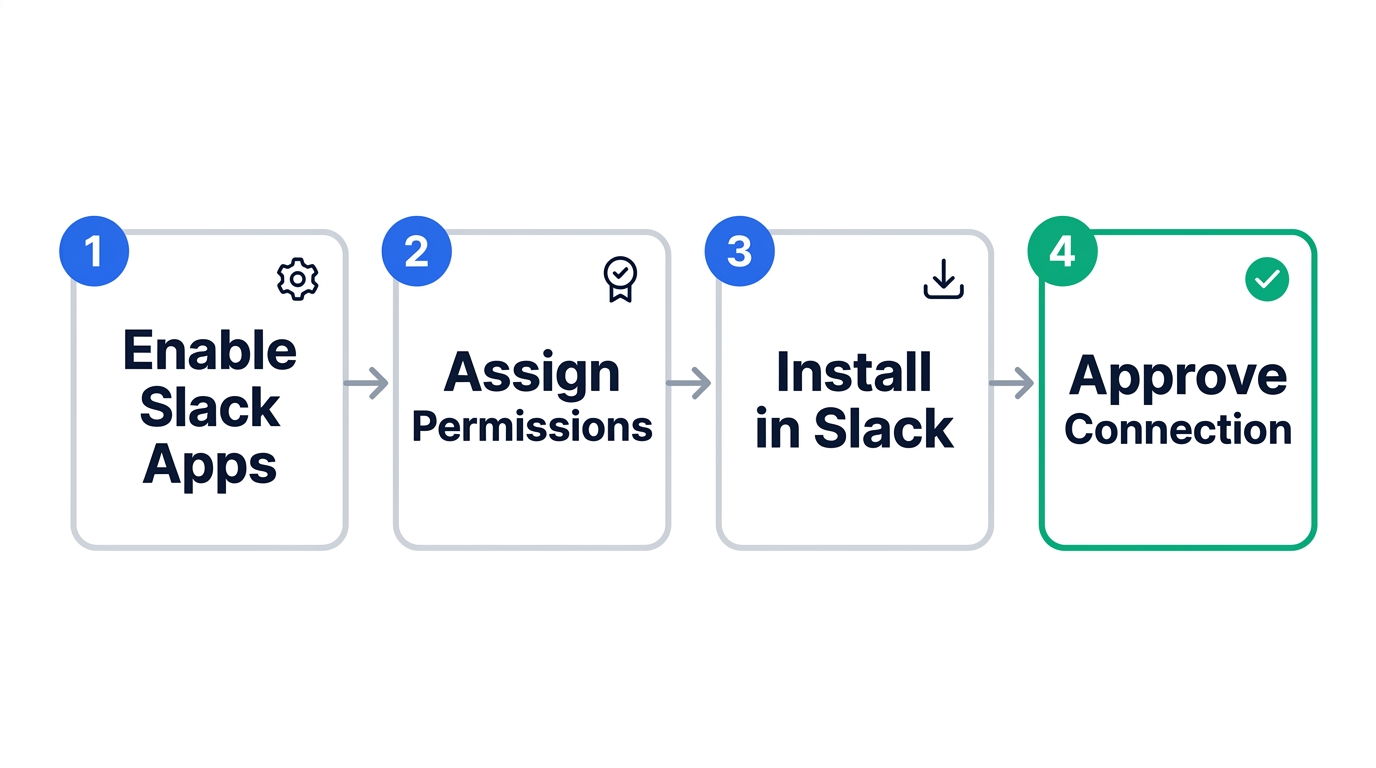
Step-by-Step Setup (Admin Side)
- Open Slack Apps Setup in Salesforce. In Setup, type "Slack Apps" into Quick Find and open Slack Apps Setup. Review and accept the terms and conditions — this step adds the "Connect Salesforce to Slack" permission to the relevant Slack permission set automatically.
- Enable the apps you need. Sales Cloud for Slack, Service Cloud for Slack, PRM for Slack, and CRM Analytics for Slack are each toggled on separately — most teams only need the first one or two.
- Assign permission sets to users. Grant "Slack Sales User" for Sales Cloud for Slack, or "Slack Service User" plus "Run Flows" for Service Cloud for Slack, via Permission Sets — not just via profile. This is the single most common point of failure (more on that in Troubleshooting below).
- Set object and record-level visibility. Choose whether Slack shows only the object type or the full record name plus object type for shared records — the narrower setting matters if any of your channels include external partners.
- Install the Slack app. From the Slack side, either search "Salesforce" in the Slack app bar and click Connect Account, or install "Service Cloud for Slack" / "Sales Cloud for Slack" from the Slack App Directory using admin credentials.
- Approve the connection in Salesforce. Once Slack requests the connection, a Salesforce admin goes to Setup → Slack → Manage Slack Connection, selects a user-mapping field, accepts the terms, and clicks Approve.
- Point individual users to add the app. Each user adds the Salesforce app to their own Slack sidebar and connects their account — this is a per-user step, not something the admin setup does for the whole org.
If you're specifically enabling Service Cloud case swarming, there's one extra step: go to Setup → Swarming, turn on the "Turn on Swarming" toggle, then select Slack from the "Swarm With a Collaboration Tool" dropdown.
Connecting Agentforce to Slack
If you're also running Agentforce, deploying an agent into Slack is a separate, additional setup path on top of the base connection above — it doesn't happen automatically once Slack and Salesforce are linked.
- In Salesforce Setup, search Quick Find for "Connected Apps OAuth Usage," scroll to Slack, and select Install.
- In Slack, go to Tools & Settings → Organization Settings → Salesforce → Agentforce. Find the agent you want to deploy and click Review Agent to see the permissions it will have inside Slack.
- Click Install Agent, check the box for each workspace it should be available in, and click Add to Workspaces.
- Manually map any users who weren't already mapped through the base Salesforce-Slack connection.
Salesforce's own Trailhead has two modules worth working through before a production rollout: "Connect Your Agentforce Org with Slack" (a hands-on project) and "Agentforce Configuration for Slack Deployment," which covers configuring agent actions once it's installed.
Method 2: Zapier or Make (When Native Isn't Enough)
Reach for an automation platform when the workflow involves a third app beyond Slack and Salesforce, needs conditional branching the native triggers don't support, or when you'd rather have a no-code team member own the logic instead of routing every change through a Salesforce admin. It's also the more common path for teams building out broader CRM-driven workflows — if you're setting this up as part of a larger lead generation automation stack rather than a single Slack alert, an automation platform is usually the better foundation than the native app alone.
Setting Up a Zap (Zapier)
- Click Create Zap, and choose Salesforce as the trigger app — pick an event like "New Lead," "New Opportunity," or "Updated Record."
- Connect your Salesforce account to Zapier and confirm it can pull a sample record.
- Add Slack as the action app and choose "Send Channel Message" (or another action, like adding a reaction to an existing message).
- Log in to Slack and authorize Zapier's access.
- Map the Salesforce fields you want into the Slack message text, run a test, then turn the Zap on.
Setting Up a Scenario (Make)
- In Salesforce, build a Record-Triggered Flow (for example: object = Lead, trigger = record created) that makes an HTTP callout to a custom webhook URL from Make.
- In Slack, create an Incoming Webhook for the destination channel (App Directory → Incoming Webhooks), or connect a Slack account directly inside Make.
- In Make, start a scenario with a Custom Webhook module and define the expected data structure from a sample Salesforce payload.
- Add a Router module if you need to branch the message by criteria — lead source, deal size, region — before it reaches Slack.
- Submit a test record in Salesforce, check Make's execution logs, and confirm the message lands in the right channel before activating the scenario.
Zapier vs. Make: Which Should You Use
Both platforms can do this job; the deciding factor is usually how complex your routing logic is and how your team prefers to pay. For a deeper breakdown of how the two actually bill (and where n8n fits as a third option), see our comparison of Make vs. Zapier vs. n8n.
Zapier
- Faster to set up for a simple one-to-one alert
- Largest app library if you'll add more tools later
- Simpler mental model: trigger → action
Make
- Visual branching (routers, filters) for multi-path logic
- Operation-based pricing is often cheaper at real volume
- Better fit once you're chaining more than 2–3 steps
Method 3: API and Webhooks (For Developers)
This is the path for teams that need business logic the first two methods can't express, expect high message volume, or already have Salesforce automation (Apex, Flow) that this should plug into rather than sit beside.
Named Credentials + Apex + Incoming Webhooks
Salesforce's own developer guidance is consistent on one point: don't hardcode Slack tokens or webhook URLs inside Apex. Set up a Named Credential pointing at your Slack Incoming Webhook URL (or the Slack Web API) instead — it handles authentication and endpoint management centrally, so revoking access later doesn't mean hunting through code.
// Named Credential: Slack_Incoming_Webhook
// Illustrative pattern — adapt object/field references to your org.
public class SlackNotifier {
    @future(callout=true)
    public static void notifyOpportunityWon(Id oppId) {
        Opportunity opp = [SELECT Name, Amount, Owner.Name
                            FROM Opportunity WHERE Id = :oppId];

        Map<String, Object> payload = new Map<String, Object>{
            'text' => opp.Owner.Name + ' just closed ' + opp.Name +
                      ' for $' + opp.Amount.format()
        };

        HttpRequest req = new HttpRequest();
        req.setEndpoint('callout:Slack_Incoming_Webhook');
        req.setMethod('POST');
        req.setHeader('Content-Type', 'application/json');
        req.setBody(JSON.serialize(payload));
        new Http().send(req);
    }
}
A minimal illustrative pattern based on Salesforce's documented Named Credential + HTTP callout approach — wrap the callout in a Flow or trigger depending on where the "opportunity won" event actually fires in your org.
Platform Events for Event-Driven Sync
For higher volume or more decoupled architecture, Platform Events let you publish an event from wherever the business logic lives, and have a separate subscribing process — an Apex trigger or external service — handle the actual Slack callout. That separation matters once you have several different Salesforce processes that all need to notify Slack; you publish one event type instead of duplicating callout code across each one. Under normal conditions, expect the full round trip — Salesforce queues the message, makes the callout, and logs the result — to take roughly 2 to 5 seconds.
Method Comparison at a Glance
| Method | Setup time | Cost | Best for |
|---|---|---|---|
| Native app | 30–60 min | Free (within your existing Salesforce/Slack plans) | Notifications, record previews, quick updates — most teams |
| Zapier / Make | 1–2 hrs per workflow | Per-task or per-operation subscription | Cross-app workflows, conditional routing, non-dev teams |
| API / webhook | Days, plus maintenance | Developer time; no separate platform fee | Custom logic, high volume, tight coupling to existing Apex/Flow |
Most orgs land on more than one: the native app for the 80% of notification/preview use cases, and either an automation platform or custom API work for the handful of workflows the native app can't express. Start with Method 1 regardless — even if you know you'll eventually need Method 2 or 3, the native app is what most of your users will actually interact with day to day.
What This Actually Costs in 2026
The native integration itself doesn't have a separate price tag — it's bundled into your existing Salesforce and Slack subscriptions. But those subscriptions moved in 2026, and the bundling itself carries a cost most competitor guides skip entirely.
On the Slack side, Pro held its price at $7.25/user/month but now includes core AI features, Salesforce Channels, and enhanced security that used to require a higher tier. Business+ rose from $12.50 to $15/user/month as part of Slack's 2025 pricing and packaging update, positioned to cover the deeper CRM app experience most B2B teams actually want. Enterprise+ is a newer tier layering in enterprise-grade AI, premium Salesforce integrations, and the admin/governance controls larger IT organizations require — priced through negotiation rather than a published rate.
On the Salesforce side, the sticker price that matters for this integration specifically is the edition tier (Enterprise/Unlimited/Developer for full API access, or the Essentials API add-on) rather than Slack itself. But if you're evaluating Salesforce's top-end bundle — the one that folds in Unlimited edition, the full AI suite, unmetered Agentforce usage, and Slack Enterprise+ together — expect that combined package to run around $550/user/month billed annually as of 2026. That's a ceiling, not a typical price: most teams doing the native Slack integration are on far more modest Salesforce and Slack tiers, and the connection works the same either way.
Watch the bundling trap. If you negotiate Slack pricing bundled with your Salesforce contract and later add Slack seats without expanding your Salesforce commitment, those new seats can be re-priced at unbundled Enterprise Grid rates — reported at 35–45% higher than the bundled rate. Document what your bundle actually covers before you scale headcount on either side.
Troubleshooting: 5 Common Issues and How to Fix Them
1. The Slack permission set isn't visible or won't assign
This is the most common failure point. Check Setup → Permission Sets (not the user's Profile) for "Slack Service Cloud User," "Slack Sales User," or the equivalent for the app you enabled. If it's missing, re-run the Slack Apps Setup wizard — accepting the terms and conditions in step 1 is what creates it in the first place.
2. Salesforce shows "This is a work in progress"
This means the setup wizard is incomplete somewhere, or a required Flow isn't Active. Walk back through each numbered section of Slack Apps Setup and confirm any associated Flow shows an Active status — a Flow left in Draft is the usual cause.
3. Connection or identity errors after setup looks complete
Usually one of: the Slack app installed in the wrong workspace, stale OAuth scopes from an earlier setup attempt, or a sandbox Salesforce org pointed at a production Slack workspace (or the reverse). Reauthorize the connection from Setup → Slack and double-check which org and which workspace are actually paired.
4. Users can't see their data, or can't be mapped
Confirm the affected user actually has the Slack permission set assigned — being on the right profile alone isn't enough if the permission set assignment step was skipped. If Slack and Salesforce don't share a matching identity field automatically, you'll need to map that user manually under the Slack connection settings.
5. An Agentforce agent doesn't appear as installable in Slack
The agent has to be explicitly marked eligible for Slack review and connection inside Agentforce's own configuration before "Review Agent" becomes available in Slack's Organization Settings → Salesforce → Agentforce screen. An agent that works fine elsewhere in Salesforce won't show up in Slack until that flag is set.
Security and Governance Checklist
- Confirm you're not on Salesforce Government Cloud before promising this integration to stakeholders — it isn't supported there, full stop.
- Assign the Slack permission sets narrowly (to the roles that need them), rather than bundling them into a broad System Administrator profile.
- For any channel that includes external partners or customers, set record visibility to object-type-only rather than full record name plus object type.
- Treat anything posted into Slack as having left Salesforce's compliance boundary — it's now subject to Slack's retention, export, and eDiscovery settings, not Salesforce's. Loop in whoever owns data-residency requirements before enabling org-wide notifications.
- For custom API work, use Named Credentials instead of tokens hardcoded in Apex — they centralize token refresh and give you one place to revoke access if a credential is compromised.
Alternatives Worth Considering
If Slack-Salesforce is one integration among many you need to manage, a dedicated iPaaS may be worth evaluating instead of stitching together point solutions. MuleSoft Composer for Salesforce automation is Salesforce's own low-code option, which keeps everything inside the platform you're already paying for. Workato and Tray.ai are enterprise-grade automation platforms commonly found in larger organizations already running many app-to-app integrations, with more centralized governance than Zapier or Make offer out of the box. Boomi is a longer-established enterprise iPaaS that shows up in the same evaluations. If you'd rather not pay per-task or per-operation SaaS pricing at real volume, migrating to a self-hosted n8n setup is the option worth researching once your automation footprint outgrows Zapier or Make's billing model. We're also planning a dedicated Workato vs. Zapier comparison for enterprise automation for teams evaluating that tier specifically.
Frequently Asked Questions
How do I connect Slack to Salesforce?
Is Slack now free with Salesforce?
Is Slack part of Salesforce now?
How do I connect my Agentforce organization to Slack?
Does this integration work with Salesforce Government Cloud?
References and further reading
- Slack Help — Connect Salesforce and Slack
- Salesforce Help — Enable Salesforce for Slack Integrations
- Salesforce Help — Service Cloud for Slack App: Troubleshooting Common Issues
- Slack Blog — Salesforce Updates Slack Pricing (June 2025 announcement)
- Salesforce Trailhead — Connect Your Agentforce Org with Slack
- Salesforce Developers Blog — Slack for Salesforce Developers

Technology consultant with 10+ years in the Japanese tech industry. Specializing in SaaS evaluation, workflow automation, and B2B tool integration.