The short version
If you are a US-based team on QuickBooks Online invoicing individual people, install the native QuickBooks Online app from the HubSpot Marketplace and you are done in under an hour. It syncs contacts, products, invoices, and credit memos, and it is included with every HubSpot plan.
If you are a B2B team invoicing companies — which describes most readers of this site — the native app has a structural problem: HubSpot syncs Contacts to QuickBooks Customers, and does not sync Companies at all. Your QuickBooks customer list is organized by business entity; your HubSpot sync is organized by person. The second contact you try to sync from the same account fails with a duplicate display name error.
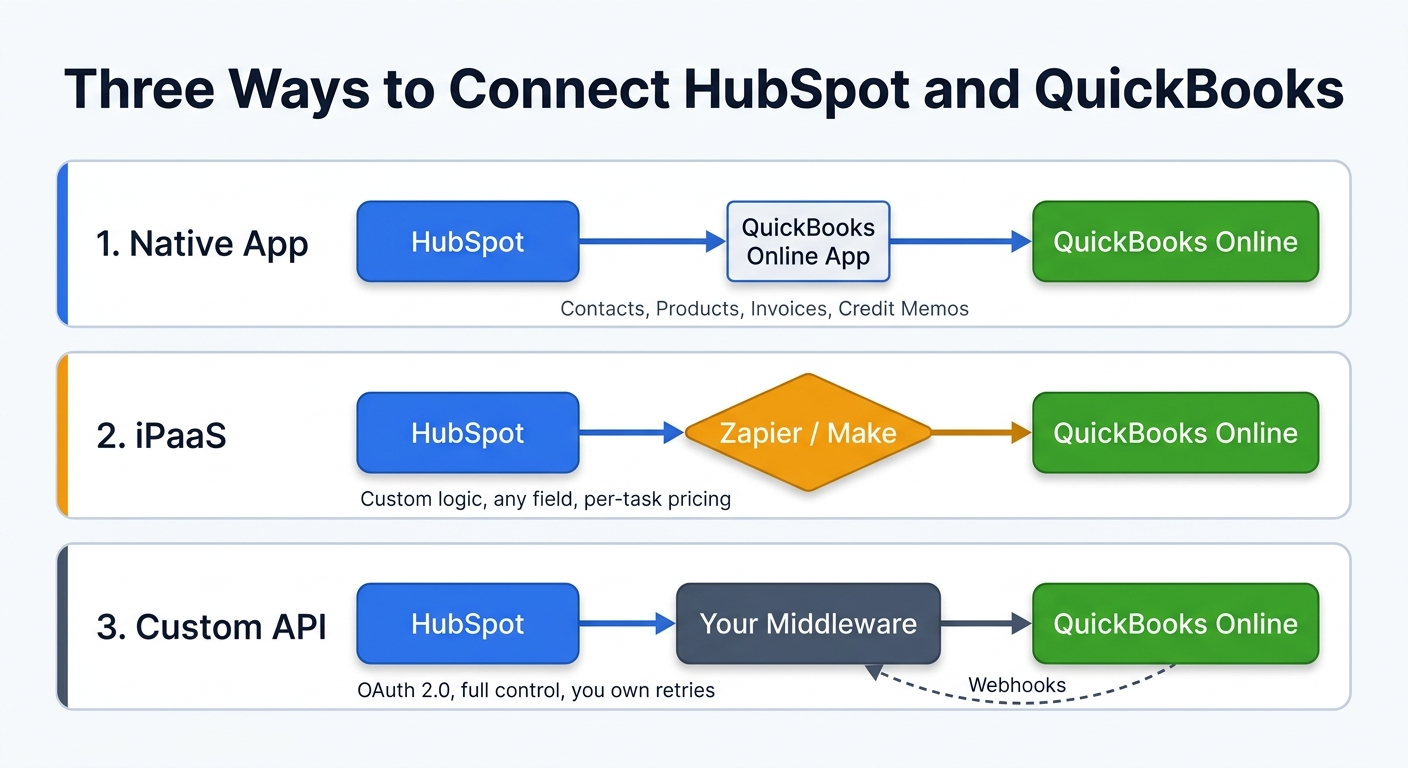
That mismatch, not feature count, is what decides your method. Native app for simple cases, Zapier or Make when you need the mapping logic the native app will not give you, and a custom API integration when you need to own idempotency and retries. If you are outside the US, the native workflow actions are unavailable to you entirely — skip to the regional restrictions.
What the integration actually does
The pitch is simple: stop retyping closed deals into your accounting system. In practice the HubSpot–QuickBooks connection covers four object pairs and nothing else.
| HubSpot object | QuickBooks object | Direction |
|---|---|---|
| Contacts | Customers | Two-way or one-way (configurable) |
| Products | Products & Services | Two-way or one-way |
| Invoices | Invoices | Two-way or one-way |
| Credit memos | Credit memos | Two-way or one-way |
| Companies | — no equivalent mapping — | Does not sync |
On top of the object sync, payment activity becomes visible on the associated deal record, so a salesperson can see whether an invoice was paid without opening QuickBooks. That single feature is the reason most revenue teams ask for this integration in the first place.
Sync timing is asymmetric and worth internalizing before you design anything on top of it: changes made in HubSpot propagate to QuickBooks within minutes, while changes made in QuickBooks are picked up roughly every 30 minutes. If you build a process that assumes a payment recorded in QuickBooks instantly moves a deal stage in HubSpot, you will spend a week chasing a bug that is really just the polling interval.
The trap: HubSpot syncs people, QuickBooks bills companies
This is the part almost every published guide skips, and it is the single most common reason a HubSpot–QuickBooks rollout stalls two weeks after launch.
QuickBooks has one commercial counterparty object: Customer. In a B2B business, that record is almost always the business — "Acme Corp" — because that is who signs the contract, receives the invoice, and pays the bill.
HubSpot models the same reality with two objects: a Company (Acme Corp) and one or more Contacts attached to it (Jane in procurement, Raj in finance).
The native integration maps Contacts to Customers. It does not map Companies to anything. So when your sync runs across an account with more than one contact, here is what happens.
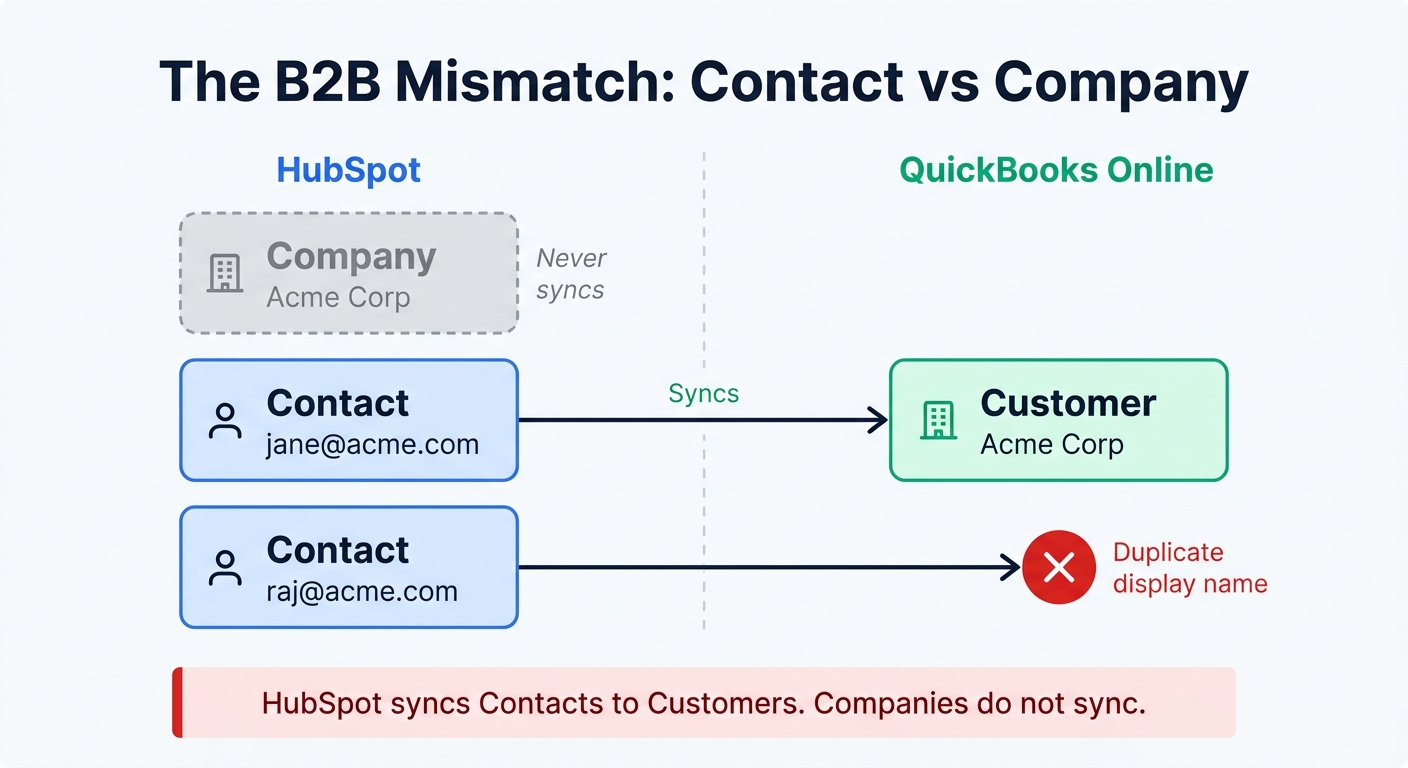
QuickBooks enforces uniqueness on the Display Name field. The first contact to sync from Acme Corp takes the display name; the next contact from the same account has nowhere to go and fails. You end up with a QuickBooks customer list that is a partial, arbitrary sample of your buyers — whoever happened to sync first — rather than a clean list of the businesses you bill.
There is a second-order effect that is easy to miss. When an invoice syncs from QuickBooks back into HubSpot, it gets associated to the primary company of the contact on the invoice. So the company association does exist on the return trip — HubSpot infers it from the contact. But it is inferred, not synced, which means if the contact's primary company association is wrong or missing in HubSpot, the invoice lands on the wrong record or floats unassociated.
Pick your customer-identity rule first, then configure the sync. The three that actually work in practice:
- One designated billing contact per company. Add a "Billing contact" property in HubSpot, and restrict the sync to contacts where it is true. Cleanest option, and it keeps your QuickBooks list small.
- Company-name display names, managed manually. Set the QuickBooks display name to the company name and accept that only one contact per account will ever sync.
- Skip contact sync entirely. Use an iPaaS or custom integration to create QuickBooks customers keyed off the HubSpot company record, and never let contact-level records into your ledger.
Whichever you choose, resist the temptation to sync your entire contact database. Syncing every contact into QuickBooks bloats the accounting system with thousands of records that will never be invoiced, and makes reconciliation slower for the people who actually live in that tool. Restrict the sync to contacts tied to closed-won deals or active opportunities.
Prerequisites and what this actually costs
Before you start, confirm you have all four of these.
- A QuickBooks Online account. Not Desktop — see the Desktop section below. Sandbox accounts cannot be connected to a production HubSpot portal, so plan your testing accordingly.
- Super Admin or App Marketplace permissions in HubSpot. The install will not appear as an option otherwise.
- Admin access in QuickBooks Online to authorize the OAuth connection.
- A clean product catalog on both sides. Mismatched product names are the number one cause of invoice line items silently failing to sync, or of duplicate products piling up in QuickBooks.
The plan-tier math
The base integration is free and available on every HubSpot tier including free. What costs money are the two things most teams assume are included.
| What you want | What it requires |
|---|---|
| Install the app; sync contacts, products, invoices, credit memos with default field mappings | Any HubSpot plan, including Free |
| Map custom properties, or change the default field mappings | A paid Data Hub tier (Starter or above) — the free data sync tier only maps standard fields such as name and email |
| Trigger QuickBooks actions from a HubSpot workflow — create an invoice, estimate, sales receipt, paid invoice, expense, or refund receipt | Professional or Enterprise on Marketing, Sales, Service, Data, or Revenue Hub — and a US-based account |
That middle row is the one that surprises people. "Two-way sync" is genuinely free, but only across HubSpot's default field mappings. The moment you need a custom property — a PO number, a billing entity code, a contract reference — to travel between the systems, you are on a paid Data Hub tier.
On the accounting side, note that Intuit raised QuickBooks Online prices for renewals on or after August 1, 2026. Essentials moved to $85/month, Plus to $140/month (from $115), and Advanced to $340/month (from $275). Simple Start was not affected and remains $38/month. Annual prepayers generally hold their existing rate until the term ends. If you are re-evaluating the ledger itself rather than just the integration, our QuickBooks vs Xero comparison for growing B2B teams works through the seat-cost math in detail.
Method 1: The native QuickBooks Online app
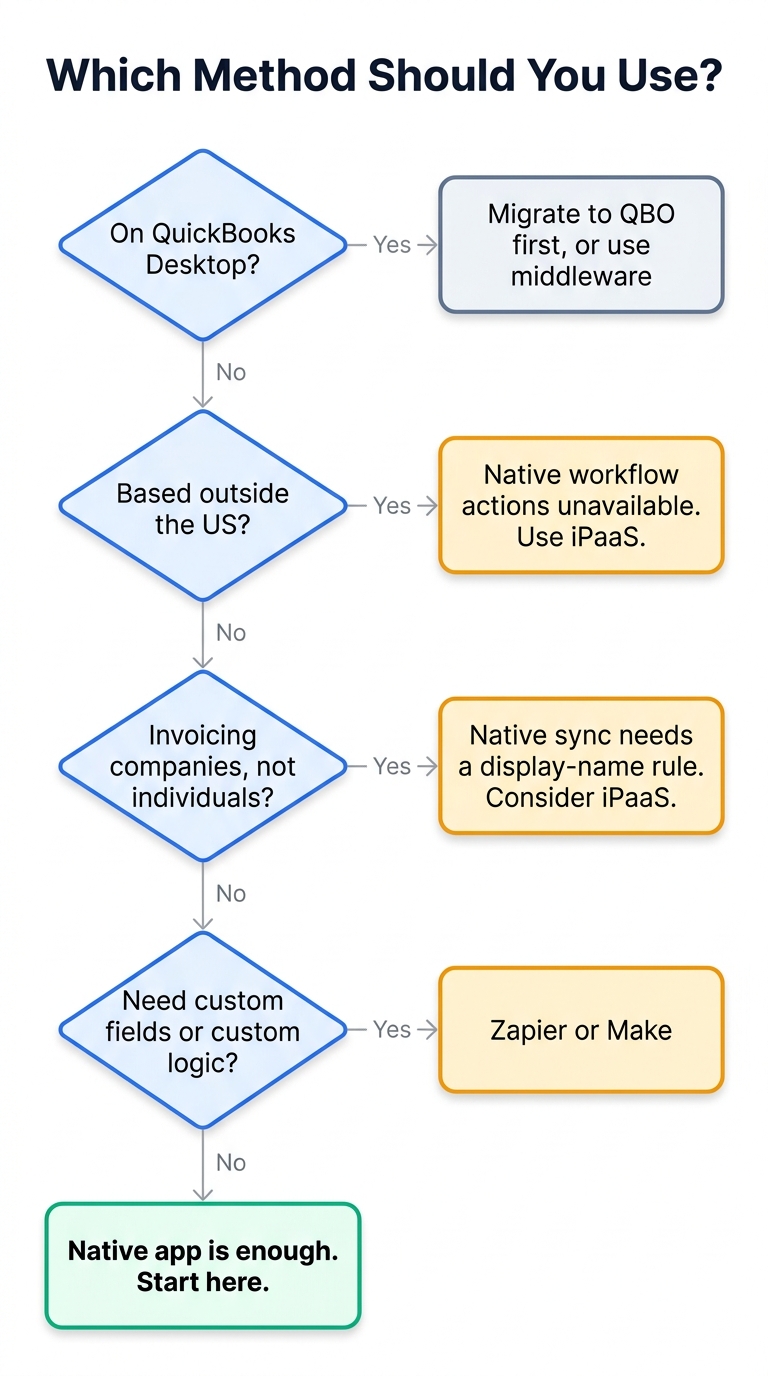
Start here unless one of the disqualifiers in the decision tree below applies to you. It is free, it is maintained by HubSpot, and it handles the common case well.
-
Clean up before you connect, not after
Deduplicate your QuickBooks customer list and decide your display-name convention now. Every minute spent here saves an hour of untangling sync errors later. Confirm that products you invoice for exist with identical names in both systems.
-
Install from the HubSpot Marketplace
In HubSpot, click the Marketplace icon in the top navigation bar and choose App Marketplace. Search for QuickBooks Online, open the listing, and click Install. Then click Connect to QuickBooks Online and enter your QuickBooks credentials to authorize the OAuth connection.
-
Choose your sync direction per object
Each of the four object pairs is configured independently. Do not default everything to two-way. A useful starting posture:
- Contacts → Customers: one-way from HubSpot, filtered to your billing contacts only.
- Products: one-way from QuickBooks into HubSpot. Accounting should own the catalog of what you can actually bill for.
- Invoices: two-way, so payment status flows back to the deal record.
-
Apply a filter so you do not sync everything
Use an active list or sync filter to scope which contacts are eligible. Contacts associated with a closed-won deal is the usual rule. This is the step teams skip, and it is why their accountant ends up with 14,000 customer records.
-
Test with real-shaped data before turning it loose
Create a test company with two contacts, push both, and confirm you get the duplicate display name failure you now expect. Then test a partial payment and a refund. These edge cases behave differently from the happy path and you want to discover that on a dummy record.
-
Wire the workflow actions, if you qualify
On Professional or Enterprise with a US-based account, add a Create a QuickBooks invoice action to a deal workflow triggered on stage change to Closed Won. This is what turns the integration from a mirror into an automation.
Some edits cannot be made in QuickBooks to invoices that were created in HubSpot — including line items, pricing, and tax information. Decide which system is the system of record for invoice amendments, write it down, and tell both teams. Ambiguity here produces sync conflicts that fail quietly.
Native app: pros and cons
Pros
- Free on every HubSpot tier, no per-task metering
- Fast setup — under an hour with clean data
- Maintained by HubSpot; no broken connector to babysit
- Payment status surfaces directly on the deal record
- Historical sync available, not just go-forward records
Cons
- No Company → Customer mapping (the B2B trap)
- Custom field mapping requires a paid Data Hub tier
- Workflow actions are US-only and Pro/Enterprise-only
- QuickBooks → HubSpot polling is ~30 minutes
- No conditional logic; it syncs or it does not
The restrictions that disqualify the native app
Four constraints turn the native integration from "good enough" into "will not work." Check these before you invest configuration time.
1. You are outside the United States
HubSpot's documentation is unambiguous: QuickBooks Online actions in HubSpot workflows are only available for customers based in the United States. Non-US teams can still install the app and sync objects, but the automation layer — create invoice, create estimate, create sales receipt — is simply not available.
There is a compounding tax problem underneath it. Most non-US QuickBooks Online versions require that synced invoices include tax (VAT, GST, HST, and so on). HubSpot invoices cannot be created with tax applied. The result is that the invoice-creation feature is not merely restricted for non-US accounts, it is structurally incompatible. If you are running UK, EU, Canadian, or Australian entities, plan on an iPaaS or custom integration from day one.
2. Multi-currency operations
The native integration will not sync invoice data into HubSpot deal properties when the QuickBooks invoice currency differs from your HubSpot company currency. If you bill in more than one currency, a meaningful slice of your invoices will sync as records but leave the deal-level reporting fields empty — which is worse than not syncing at all, because the dashboard looks populated while quietly under-reporting.
3. Revenue recognition and service dates
HubSpot does not support adding service dates to invoice line items. If you have enabled QuickBooks Online's Revenue Recognition feature, every synced line item will fail validation, because that feature requires a service date on each line. Subscription and services businesses hit this immediately.
4. Split payments and card fees
When a single payment in QuickBooks covers multiple invoices, that payment will not sync back to HubSpot. Credit card fees also do not sync onto QuickBooks invoices. Neither breaks the integration, but both mean your HubSpot-side revenue picture is approximate, and you should not build commission calculations on it.
Method 2: Zapier or Make
Reach for an iPaaS when the native app's answer is close but not quite right — you need conditional logic, a custom field mapping without paying for Data Hub, or a company-keyed customer record instead of a contact-keyed one.
The canonical build is a two-scenario setup:
- Deal closed-won → create QuickBooks invoice. Trigger on the HubSpot deal stage change, look up or create the customer using the company name rather than the contact, map line items from deal line items, then create the invoice as a draft for review.
- QuickBooks payment received → update HubSpot deal. Trigger on the payment, find the associated deal by invoice number, and write the payment date and amount back to deal properties.
The lookup-or-create step in the first scenario is the whole reason to use an iPaaS. It is the piece the native app cannot express, and it is what lets you key your ledger on businesses instead of people.
What it costs
| Plan | Price | Included volume | Notable limit |
|---|---|---|---|
| Zapier Free | $0 | 100 tasks/month | Two-step Zaps only — no multi-step, no webhooks, no Paths |
| Zapier Professional | From $19.99/mo annual ($29.99 monthly) | 750 tasks/month at entry tier | Multi-step, webhooks, and Paths unlock here; single seat |
| Zapier Team | From $69/mo annual | 2,000 tasks/month at entry tier | Up to 25 seats |
| Make Free | $0 | 1,000 credits/month | 2 active scenarios; 15-minute minimum run interval |
| Make Core | From $9/mo | 10,000 credits/month | Unlimited scenarios, API access; still 15-minute minimum interval |
| Make Pro | From $16/mo | 10,000 credits/month | Scheduling down to the minute; priority execution |
The practical difference for this use case: Make is materially cheaper per unit of work and its visual builder handles multi-step lookup-and-branch logic more naturally, while Zapier has the shallower learning curve. If your invoice-creation scenario runs five modules per deal and you close 200 deals a month, that is 1,000 Make operations — inside the free tier — versus roughly 1,000 Zapier tasks, which puts you on a paid tier. We worked through the metering differences in detail in our Make vs Zapier vs n8n comparison, and if per-task pricing is already biting you, the Zapier to n8n migration playbook covers the self-hosted exit.
Make's Free and Core tiers enforce a 15-minute minimum between scenario runs. Combined with QuickBooks' own ~30-minute sync cadence, a naive design can put 45 minutes between a payment landing and a deal updating. If someone has promised the sales team "real-time," budget for Make Pro or use webhooks rather than polling.
Method 3: The custom API path
Build this when you need transactional guarantees the no-code tools cannot offer: exactly-once invoice creation, custom reconciliation logic, or multi-entity routing across several QuickBooks companies. It is the only option that gives you real control over retries and idempotency — and the only one where those become your problem.
Authentication
QuickBooks Online uses OAuth 2.0 through Intuit's identity platform with the authorization code flow. Two numbers govern your token handling:
- Access tokens expire after 1 hour. Refresh proactively, not reactively.
- Refresh tokens roll on a 100-day window. Critically, Intuit issues a new refresh token periodically, and you must persist the latest one. If your integration sits idle past the window — a sandbox left alone over a holiday, a low-volume entity — the connection dies and requires manual re-authorization.
HubSpot's side is simpler: create a private app, scope it to the CRM objects you need, and use the app token.
Rate limits, on both sides
| API | Burst limit | Daily limit |
|---|---|---|
| QuickBooks Online (Accounting) | 500 requests/minute per realmId, max 10 concurrent | Not the binding constraint; concurrency usually bites first |
| HubSpot private app — Free/Starter | 100 requests / 10 seconds | 250,000/day |
| HubSpot private app — Professional | 190 requests / 10 seconds | 625,000/day |
| HubSpot private app — Enterprise | 190 requests / 10 seconds | 1,000,000/day |
| HubSpot search endpoints | 5 requests/second per account | Separate and much stricter |
Two traps here. First, HubSpot's daily limit is shared across every app on the account, while the burst limit is per app — so a well-behaved integration can still be starved by a noisy neighbor. Second, the search endpoint limit of 5 requests per second is far tighter than the general burst limit, and "find the HubSpot deal matching this invoice" is exactly a search call. Cache your ID mappings rather than searching on every event. Both APIs return 429 when you exceed a limit; retry with exponential backoff and jitter.
The webhook gotcha
QuickBooks webhooks notify you that an entity changed, but the payload generally contains only a reference to the changed entity — its ID and operation — not the full record. Every notification therefore costs you a follow-up API call to fetch the current state.
{
  "eventNotifications": [{
    "realmId": "1234567890",
    "dataChangeEvent": {
      "entities": [{
        "name": "Invoice",
        "id": "123",
        "operation": "Update",
        "lastUpdated": "2026-08-27T10:12:44.000Z"
      }]
    }
  }]
}
// -> No amount, no customer, no status.
// -> You must now GET /v3/company/{realmId}/invoice/123
Budget for that amplification. A burst of 200 invoice updates is 200 webhooks and 200 reads, against a 10-concurrent-request ceiling. Queue the notifications and drain them at a controlled rate rather than fanning out synchronously from the webhook handler.
The failure that hurts is a retry that bills a customer twice. Store a deterministic key — the HubSpot deal ID — on the QuickBooks invoice in a custom field or the DocNumber, and check for an existing invoice with that key before creating one. Do not rely on your queue's delivery guarantees; assume at-least-once and defend accordingly. The same discipline applies to any CRM-to-system-of-record sync, which we walked through for a different pair in our Slack and Salesforce integration guide.
If you are on QuickBooks Desktop
There is no native HubSpot integration for QuickBooks Desktop. The Marketplace app connects to QuickBooks Online only. Connecting Desktop requires third-party middleware or a custom build against the Desktop SDK — a meaningfully heavier lift than the Online path.
Before you invest in that, check the calendar, because the ground is moving:
- Intuit stopped selling new subscriptions for US QuickBooks Desktop Pro Plus, Premier Plus, and Mac Plus as of September 30, 2024. Existing subscribers can still renew.
- Support for QuickBooks Desktop 2023 ended May 31, 2026.
- QuickBooks Desktop 2024 — the last non-Enterprise release — loses support on September 30, 2027.
- Enterprise is the only Desktop edition Intuit continues to sell and support.
When support ends for a Desktop version, the connected services stop: payroll tax tables and filing, bank feeds and automatic transaction downloads, and card and check payment processing. The software keeps opening your file; it stops talking to the outside world.
If you are on Desktop Pro, Premier, or Mac and considering a HubSpot integration, do the migration to QuickBooks Online first and integrate second. Building custom Desktop middleware in 2026 means paying to connect a system with a published end date. The exception is Enterprise, which has no such deadline — there, middleware is a legitimate long-term choice.
Be realistic about the migration itself: large Desktop files hit conversion limits and need manual workarounds, so scope it as a project, not an afternoon.
Troubleshooting: the five errors you will actually see
These are the named errors from HubSpot's QuickBooks sync troubleshooting documentation, in roughly the order of how often teams hit them.
CauseThe contact on the invoice was not found in QuickBooks when the invoice tried to sync — almost always because the contact's email address does not match the QuickBooks customer's email.
FixAlign the email on the HubSpot contact with the QuickBooks customer record, or select the correct customer manually from the dropdown on the invoice. Email is the matching key; treat it as such in your data hygiene rules.
CauseThe B2B trap. QuickBooks requires unique display names. The first contact from a company takes the company name as its display name; every subsequent contact from that company collides.
FixThere is no configuration that makes this go away — it is the object model. Apply one of the identity rules from the section above: designate a single billing contact per company, or move customer creation to an iPaaS keyed on the company record.
CauseQuickBooks Online's Revenue Recognition feature requires a service date on every line item, and HubSpot invoices do not support service dates on line items.
FixEither disable revenue recognition in QuickBooks, or stop creating those invoices in HubSpot and handle recognition reporting on the accounting side. There is no middle path with the native app.
CauseSomeone edited an invoice in QuickBooks that was originally created in HubSpot.
FixRevert the change in QuickBooks and make the adjustment in HubSpot instead. Then fix the process — this error is a symptom of two teams believing they own the same record.
CauseQuickBooks has Custom Transaction Numbers enabled and the incoming invoice number already exists in the ledger.
FixResolve the conflicting numbers in QuickBooks, then turn off Custom Transaction Numbers so QuickBooks assigns them. If you are on the custom API path, this is also the setting that makes DocNumber viable as an idempotency key — so choose deliberately.
A note on silent failures
The errors above surface in the sync log. The more dangerous category is the one that does not raise an error at all: currency-mismatched invoices that sync without populating deal properties, split payments that never arrive, and card fees that quietly do not appear. Build a weekly reconciliation check — count invoices in QuickBooks against synced invoices in HubSpot for the period — rather than trusting an empty error log.
Which method should you use
| Native app | Zapier / Make | Custom API | |
|---|---|---|---|
| Setup time | Under an hour | Half a day to two days | Two to six weeks |
| Recurring cost | $0 (Data Hub tier for custom fields) | $0–$69+/mo by volume | Hosting plus maintenance |
| Company-keyed customers | No | Yes | Yes |
| Custom field mapping | Paid Data Hub tier | Yes | Yes |
| Conditional logic | No | Yes | Yes |
| Works outside the US | Sync yes, workflow actions no | Yes | Yes |
| QuickBooks Desktop | No | Via middleware only | Desktop SDK required |
| You own retries | No — HubSpot does | Partly | Yes, entirely |
Our recommendation, stated plainly:
- Start with the native app if you are US-based, on QuickBooks Online, single-currency, and can live with one billing contact per company. Most teams under about 50 invoices a month never need more.
- Go to Make or Zapier the moment you need company-keyed customers, custom fields without a Data Hub upgrade, multi-currency handling, or you are outside the US. This is where most B2B teams land.
- Build custom only when you have multi-entity routing, genuine exactly-once requirements, or volume that makes per-task pricing worse than an engineer's time. Below a few thousand invoices a month, that math rarely works.
A closing note on scope: connecting the CRM to the ledger solves the deal-to-invoice half of the finance stack. It does nothing for the money going out, which is a separate tooling decision — our roundup of expense management software for small business covers that side.
Frequently asked questions
How do I connect QuickBooks to HubSpot?
Does HubSpot integrate with QuickBooks Desktop?
Is QuickBooks Desktop going away in 2026?
Partly. It is a staged wind-down, not a single shutoff date. Intuit stopped selling new US subscriptions for Pro Plus, Premier Plus, and Mac Plus in September 2024, though existing subscribers can renew. Support for Desktop 2023 ended May 31, 2026, and Desktop 2024 — the final non-Enterprise version — loses support September 30, 2027. QuickBooks Desktop Enterprise is the only edition Intuit still sells and supports.
When support ends, your file still opens but connected services stop: payroll tax tables and filing, bank feeds, and payment processing all go dark.
Which CRM is best for integrating with QuickBooks?
Why do some accountants dislike QuickBooks?
The recurring complaints from accounting professionals cluster around a few themes: repeated price increases, limited multi-entity consolidation, and constraints in inventory and cost-of-goods handling that push growing businesses toward mid-market ERP systems earlier than expected.
Pricing is the most concrete and most recent. Renewals on or after August 1, 2026 moved Essentials to $85/month, Plus to $140/month, and Advanced to $340/month. For the integration decision specifically, the relevant limitation is not accountant sentiment but the API and feature restrictions covered above — particularly the non-US tax handling and the absence of service dates on synced line items.
How we researched this
This guide is based on HubSpot's official integration and troubleshooting documentation, Intuit's QuickBooks Online developer documentation and pricing announcements, and the published pricing pages of Zapier and Make, all checked in August 2026. Error messages are quoted verbatim from HubSpot's QuickBooks Online data sync troubleshooting guide. Pricing and rate limits change frequently at all four vendors — verify current figures against the primary sources below before committing to a budget or an architecture. We did not receive compensation from any vendor mentioned, and StackScout has no affiliate relationship with HubSpot or Intuit.
References and sources
- HubSpot Knowledge Base — Connect HubSpot and QuickBooks Online (setup steps, permissions, synced objects, sync frequency)
- HubSpot Knowledge Base — Use HubSpot's integration with QuickBooks (object mappings, company association behavior, non-US tax limitation)
- HubSpot Knowledge Base — Troubleshoot the QuickBooks Online data sync integration (verbatim error messages and fixes)
- HubSpot Knowledge Base — Use QuickBooks Online actions with HubSpot workflows (available actions, tier requirements, US-only restriction)
- HubSpot Developer Docs — API usage guidelines and limits (private app rate limits, search endpoint limits)
- Intuit — QuickBooks Online pricing changes (August 1, 2026 renewal pricing)
- Intuit — QuickBooks Desktop service discontinuation policy (support end dates and discontinued services)
- Zapier — Plans and pricing (task allowances, multi-step and webhook tier gating)
- Make — Plans and pricing (credit allowances, scheduling interval limits)

Technology consultant with 10+ years in the Japanese tech industry. Specializing in SaaS evaluation, workflow automation, and B2B tool integration.