Zapier Zap Failed Silently: How to Debug and Fix Broken Triggers in 2026
The short version
A Zap that "fails silently" almost never means Zapier is broken. It means the run ended in a state that Zapier classifies as a non-error — filtered, halted, held, skipped, or successfully written to the wrong place — and non-errors do not generate notifications by design. Worse, when a run does error, Zapier's own autoreplay suppresses every alert channel for up to 10 hours and 35 minutes before the first email goes out.
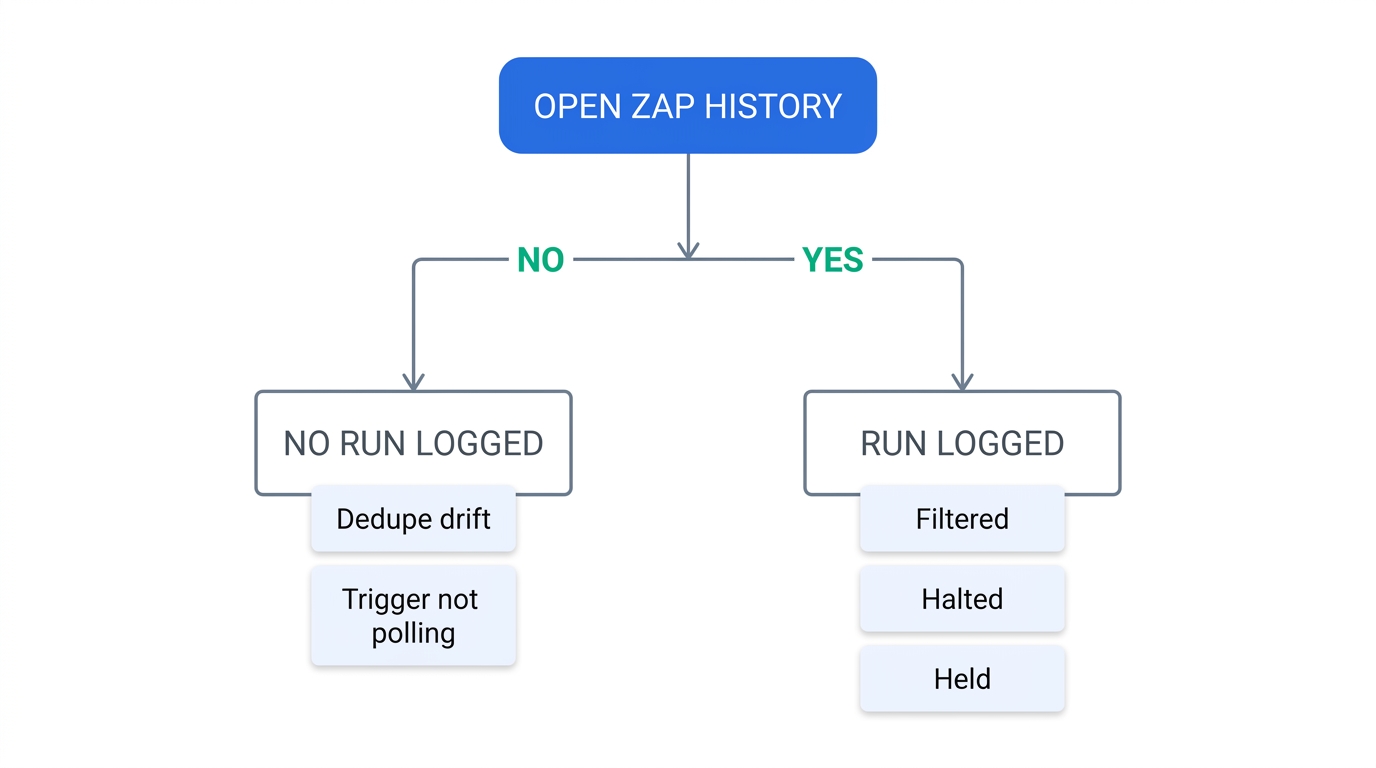
So the fix is two-part. First, triage the specific silence: open Zap history and determine whether a run was logged at all — that single fork sends you down two completely different debugging paths. Second, stop relying on native error notifications for anything that matters, and add a heartbeat check that alerts on the absence of expected output rather than the presence of an error.
Why silence is the default, not the exception
Every troubleshooting guide tells you to check Zap history. That advice is correct and it is where we will start. But it skips the more useful question: why did nobody get told? If you understand the suppression mechanics, you can predict which of your Zaps are capable of failing quietly — and it turns out most of them are.
There are four separate mechanisms in Zapier that turn a failure into silence, and they stack.
1. Most "stops" are not errors
As of September 2026, Zapier documents eleven run statuses. Only one of them — Errored — triggers the error notification machinery. Several of the others describe a workflow that produced no business outcome and told nobody:
| Status | What it means | Alerts you? |
|---|---|---|
| Successful | Run completed without issues | No |
| Filtered | Filter conditions were not met, so no later step ran | No |
| Safely halted | The run purposely stopped — commonly a search action that found no results | No |
| Skipped | A step did not run because of the result of a preceding step | No |
| On hold | Run paused — disconnected account, task limit, flood protection | Indirectly, at best |
| Scheduled | Errored, but queued for an autoreplay attempt | Not yet |
| Handled error | An error handler ran as an alternative workflow | No — suppressed by design |
| Errored | The run encountered an issue and did not complete | Yes |
| Delayed / Running / Needs review | In-flight states | No |
Look at Filtered and Safely halted in particular. A "Find Contact" search that returns nothing halts safely. To Zapier this is a correct, intentional outcome — the workflow asked a question and got an empty answer. To you it means the deal never got created. Both look identical to a healthy no-op in the dashboard.
2. Autoreplay mutes every channel for up to 10h35m
This is the mechanism most teams have never costed out. If a step errors and autoreplay is enabled (available on Professional, Team, and Enterprise plans), Zapier will retry the step up to five times, backing off after each failure: 5 minutes, then 30 minutes, then 1 hour, then 3 hours, then 6 hours.
Add those up and the fifth attempt lands roughly 10 hours and 35 minutes after the original trigger event. Zapier's documentation is explicit about what happens in the meantime: it "will not send any error notification emails until the final autoreplay attempt fails," and any Zapier Manager Zaps connected to that Zap "will not trigger until the final autoreplay attempt fails."
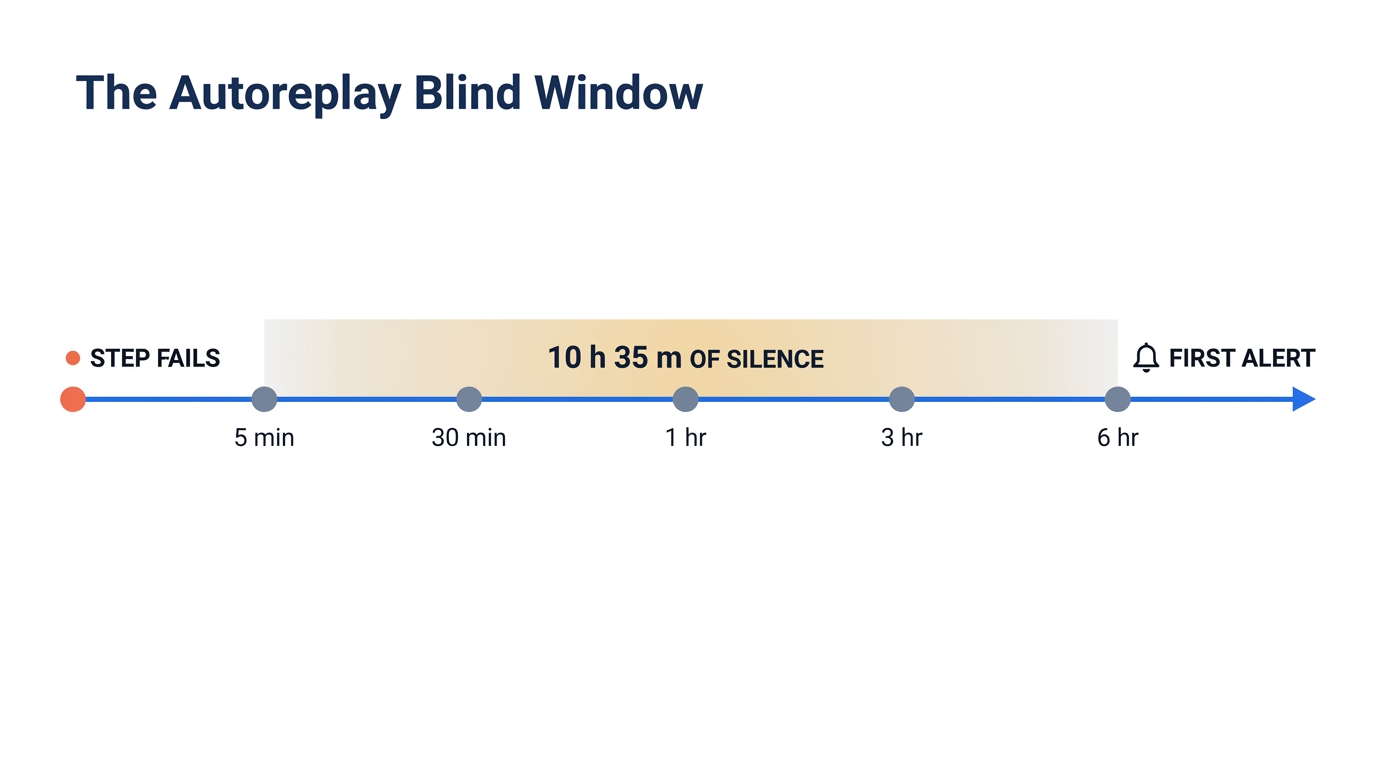
Autoreplay is genuinely useful — most transient 429 and 500 errors clear on the second attempt. The problem is that teams enable it and build their alerting on Zapier Manager, which means they have unknowingly configured a ten-hour alert delay for the exact failures autoreplay cannot fix, such as a revoked OAuth token. Autoreplay and Zapier Manager are not complementary. Pick one as your detection layer, and make it not-Zapier-Manager.
3. Error handlers suppress notifications on purpose
Zapier's error handler feature (Professional plans and above) lets you attach a fallback branch to any step except a trigger or a Paths step. It is a real improvement over the old "hope it works" model, but read the fine print: when an error handler runs, Zapier does not send error notification emails, and the originally errored step does not count toward the Zap's error ratio.
That is correct behavior for a handler that genuinely resolves the problem — writing the record to a dead-letter table, say. It is a disaster for a handler someone added months ago that just logs to a spreadsheet nobody reads. The Zap then reports as healthy forever while quietly diverting traffic.
4. Auto-shutoff needs a 95% failure rate
Zapier will automatically turn off a Zap that "errors 95% of the time it runs and has run more than 20 times in the past 7 days," and on paid plans there is a grace period before that happens — 24 hours on Team, 72 hours on Company plans.
Invert that threshold and you get the single most useful number in this article. A Zap failing 90% of the time will never be auto-disabled. It will sit there for months, dropping nine out of ten leads, showing a green toggle, and generating exactly the kind of "we thought that integration was working" conversation that surfaces during a quarterly pipeline review.
The five classes of silent Zap failure
Silent failures are not one problem. They are five, and each has a different tell in Zap history and a different fix. Getting the class right in the first two minutes saves you from reconnecting accounts that were never disconnected.
The trigger never fired
Nothing appears in Zap history at all. The most common causes are deduplication drift, a polling interval longer than your expectations, an account in a "needs reconnect" state, or data that existed before the Zap was turned on — Zapier explicitly does not trigger on pre-existing items.
Deduplication drift is the one people miss. Polling triggers decide an item is new by comparing its unique ID to IDs the Zap has already seen. Google Sheets uses row numbers as that ID. Delete rows from the middle of a sheet and everything below renumbers, but Zapier is still waiting for row numbers past the high-water mark it already recorded. New rows land in slots it considers already processed, and nothing fires. Ever. A blank row anywhere in the sheet causes a related failure: Zapier reads it as the end of the data and never looks below it.
Tell: Zap history is empty for the window in question, and the Zap is toggled on.
It ran, and stopped on purpose
The run is logged as Filtered, Safely halted,
or Skipped. Zapier considers all three correct outcomes. Typical triggers for
this class: a filter comparing a text field that upstream changed from "true" to
true, a search step that no longer matches because the source system started padding IDs, or a
Paths branch where no condition matches and no fallback path exists.
Note the asymmetry that catches people: a fallback path only runs when data matches no other branch. If a matching branch errors, the fallback does not take over. Fallback paths are not error handling.
Tell: Runs appear on schedule, all with non-error statuses, and the downstream record count is zero.
It ran, succeeded, and wrote garbage
The hardest class to detect, because every status is green. Schema drift is the usual cause: the source
app renames or restructures a field, the mapped token resolves to empty, and the action step happily
creates a record with a blank name or a default value. Zapier has no opinion about whether
Contact Name: "" is meaningful — the API returned 200, so the run succeeded.
A related variant is the deduplication mismatch on the write side: an upsert keyed on an email address that the source system now sends in a different case or with a plus-tag creates duplicates rather than updating. Everything is green; your CRM is quietly filling with junk. This is the same class of matching problem that makes connecting HubSpot with QuickBooks harder than the setup guides suggest.
Tell: 100% success rate in Zap history, but the destination records are empty, duplicated, or defaulted. Only spot-checking the data out tab reveals it.
It was held or throttled
Runs show On hold. Zapier documents six reasons: flood protection when 100+ events fire at once, a disconnected app account, hitting your plan's task limit or losing access to a premium app, expired payment information, a Team or Enterprise app-access policy, and a Zap with more than 100 steps.
Flood protection is the sneaky one. A bulk import, a backfill, or a CSV paste into a source sheet can trip the 100-event threshold and put the whole batch on hold. Held runs are not lost — they are replayable from Zap history — but nothing resumes them automatically, and replays process at a rate of one per second, so a 5,000-record backlog takes well over an hour to drain once you notice.
There are hard rate limits underneath this too. Instant (webhook) triggers begin returning 429s past 20,000 requests every 5 minutes per user; polling triggers on Free and trial plans hold runs past 200 requests every 10 minutes per Zap.
Tell: A dense cluster of held runs with a shared timestamp, usually right after someone did something bulk.
It errored, but the alert was suppressed
The run genuinely failed and you found out days later. Causes, in rough order of frequency: autoreplay
still burning through its 10-hour backoff; an error handler swallowing the notification; account
notification frequency set to Never or to an hourly summary that lands in a filtered folder;
or — the organizational version — Zapier Manager routing the alert to the wrong human.
That last one deserves emphasis. On Team and Enterprise plans, the error notification goes to the user who created the Zap that errored, not the person who built the monitoring Zap. If the Zap's author left the company eighteen months ago, the alert is being delivered, correctly, to a deactivated mailbox.
Tell: Zap history shows real errors well before anyone was notified.
The 15-minute triage
Work this in order. The single most important branch is step 2 — whether a run was logged at all — because it splits the problem space in half and the two halves share almost no fixes.
-
Bound the incident before you open anything
Write down the last known-good record and the first known-missing one, with timestamps. Without this you cannot tell a trigger that stopped from a trigger that never started, and you will waste the window in which Zap history still holds the evidence. Retention matters here: Zapier keeps Zap history for roughly 29 to 69 days by default depending on the account, and only Enterprise admins can customize it — 7 to 30 days by policy, extendable up to 90 days for troubleshooting.
-
Open Zap history and filter to that window
Do not filter by status yet. You need the raw count first. Ask one question: are there runs in this window at all?
- No runs logged → Class 1. Skip to step 3.
- Runs logged → Classes 2–5. Skip to step 4.
-
If nothing ran: test the trigger in isolation
Open the Zap editor and pull a fresh test from the trigger step. Zapier returns the three most recent items it can see. This is diagnostic in itself:
- Test returns your missing records → the trigger can see the data, so this is deduplication drift. Zapier already counted those IDs as processed.
- Test returns nothing or stale records → the connection, permissions, or trigger configuration is wrong. Check the connected account for a "needs reconnect" state first; OAuth token expiry and revoked access are the leading causes and they do not announce themselves.
- Test returns records you did not expect → wrong trigger event or wrong trigger options, e.g. "New or Updated Row" pointed at the wrong worksheet after a tab rename.
-
If runs exist: read statuses, not the green checkmark
Group the window by status. A wall of Filtered means your filter logic broke, not your integration. A wall of On hold at a shared timestamp means flood protection or a billing state. A mix of Successful with the wrong downstream result is Class 3 and requires the next step.
-
Open one failing run and read data out, not data in
Almost everyone reads the input fields and stops. The input is usually fine. Open the action step's data out and check what was actually written: the record ID that came back, whether the name field is populated, whether the ID is one you already created earlier. For HTTP-level problems, the log shows method, endpoint, parameters, headers, and request body — a 401 or 403 there is a permission problem, a 422 is a validation problem, and they get fixed in completely different places.
-
Fix, then replay — in that order
Replayed runs use the current version of the Zap, so replaying before you fix just reproduces the failure and burns tasks. You have 60 days from the original trigger event to replay a run, which is usually shorter than history retention, so the replay deadline is the real clock.
Recovering the missing data. For Classes 2, 4, and 5, replay from Zap history and you are done. For Class 1 there is nothing to replay — no run was ever created — so you have to re-emit the source events: touch the records so they look new (a dummy column edit in Sheets, a tag add/remove in a CRM), or backfill through a one-off import. Budget tasks for it; a 2,000-record backfill on a three-step Zap is 6,000 tasks.
Fixes, by class
Class 1: resetting deduplication
Zapier does not expose a "clear the dedupe cache" button, so the reliable move is to give the trigger a clean surface:
- Google Sheets: remove blank rows, never delete rows while the Zap is on, and only append at the bottom — rows inserted mid-sheet are not considered new. If the sheet is already mangled, copy the data to a fresh sheet, point the trigger at it, and retest. Sheets above roughly 10,000 rows are documented as unreliable for this trigger; split them by period.
- Any polling trigger: toggling the Zap off and back on forces a fresh connection check and is worth doing once before deeper surgery.
- Structural changes: turn the Zap off, make the change, turn it back on. Renaming a column, reordering fields, or deleting a worksheet tab while a Zap is live is the single most common way to create a silent trigger.
Class 1: matching the polling interval to the promise
If your Zap is doing something a human is waiting on, know your actual latency. As of September 2026, polling intervals are plan-bound:
| Plan | Polling interval | Worst-case delay before the run starts |
|---|---|---|
| Free | 15 minutes | ~15 min |
| Professional | 2 minutes | ~2 min |
| Team | 1 minute | ~1 min |
| Enterprise | 1 minute | ~1 min |
A "instant lead routing" workflow on a Free plan is a fifteen-minute workflow, and every complaint about it is a support ticket rather than a bug. Where the source app offers an instant (webhook) trigger — shown with a lightning bolt — use it; it removes the polling window and the dedupe drift class of failure in one move.
Class 2: make intentional stops loud
Add an explicit "this should not happen" branch. Where you have a search step that can legitimately find nothing, follow it with a Paths step: one branch for found, one for not-found that posts to an ops channel. Where you have a filter, invert the logic into a second path that captures the rejects. The point is to convert a Filtered status into a message a human sees.
Class 3: assert the outcome
After the write step, add a filter that only continues if the created record's ID is present and the critical field is non-empty, then route the failure to an alert. This is the automation equivalent of a unit test assertion and it is the only defense against schema drift, because schema drift produces no error to catch.
Class 4 & 5: fix the settings before you fix the Zap
- Set account notification frequency deliberately. The options are
Immediately(the default),Immediately, then hourly summary,Hourly summary, andNever. Audit which one you are actually on — inherited accounts are frequently onNever. - Keep the default "Turn off if errors occur" rather than "Keep running if errors occur." The second setting removes your last automatic safety net, and given the 95% threshold that net is already loose.
- Audit Zap ownership on Team and Enterprise plans. Every Zap owned by a departed employee is a Zap whose errors are being emailed into a void. Re-own them.
- Enable pay-per-task billing or set a calendar reminder at 80% task usage, so a billing ceiling never becomes a silent data outage mid-month.
The monitoring layer Zapier does not ship
Native error notifications answer "did a step throw an exception?" They cannot answer "did the business outcome happen?" Those are different questions, and only the second one matters. Build three layers.
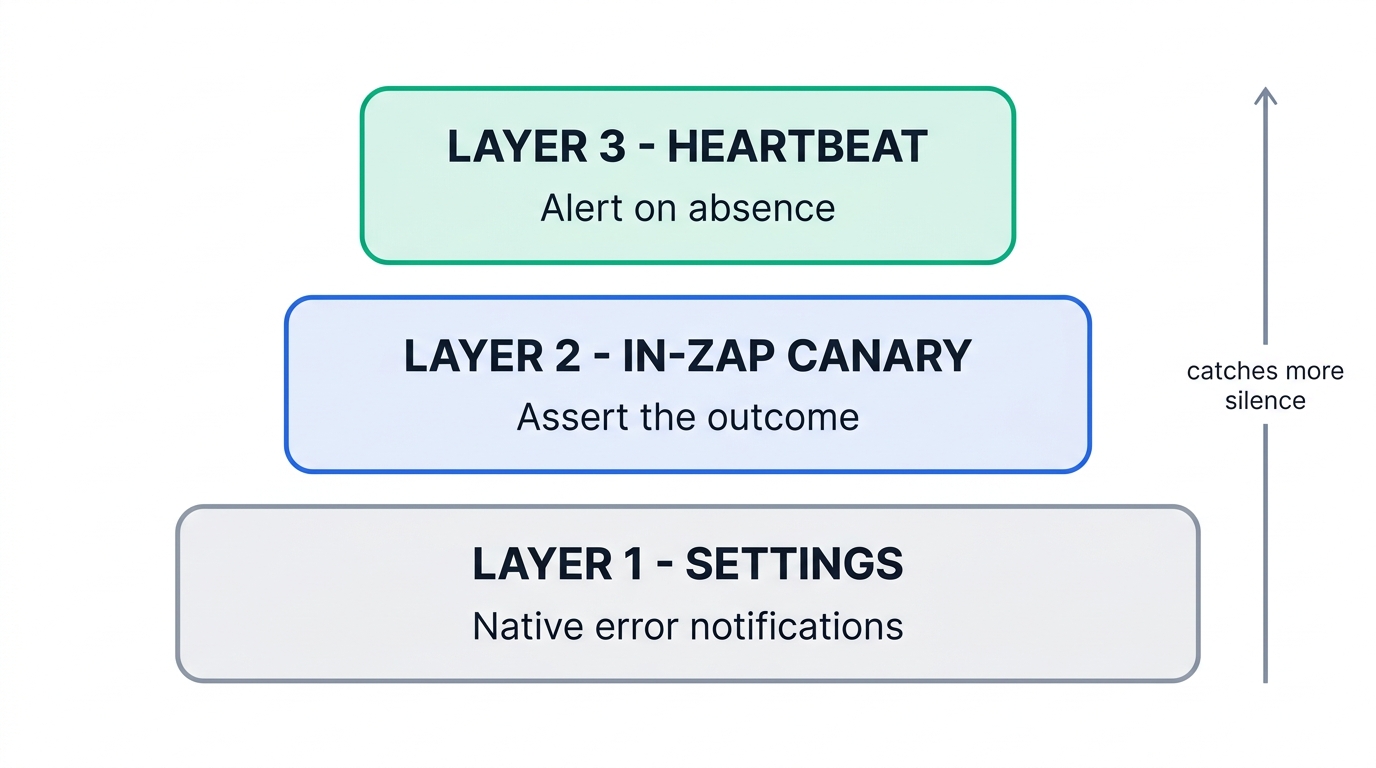
Layer 1 — Settings hygiene (30 minutes, catches Class 5)
Notification frequency set to immediate, ownership audited, "turn off if errors occur" left on, and a documented decision about autoreplay. If a Zap is time-critical, turn autoreplay off for that specific Zap and handle retries with an explicit error handler instead — you trade automatic recovery for a 10-hour reduction in time-to-alert, which for a lead-routing workflow is the right trade.
Layer 2 — In-Zap canaries (1 hour per Zap, catches Classes 2 and 3)
Inside each critical Zap, assert the outcome after the final write, and route both the assertion failure and the not-found branch of any search step to a dedicated alerts channel. Post to a channel humans already watch, not a new one — the alerting Zap itself becomes a silent failure if nobody has the channel open. If your alerts live in Slack alongside CRM data, the routing patterns in our guide to connecting Slack with Salesforce apply directly.
Layer 3 — A heartbeat that alerts on absence (2 hours, catches Class 1 and 4)
This is the layer almost nobody builds and the only one that catches a trigger that stopped firing, because a dead trigger produces no event for anything else to react to. The pattern is a dead man's switch:
-
Have the critical Zap write a timestamp on every successful run
A single-row "last seen" table in Airtable, a Sheets cell, or a counter row per workflow. One extra action step, one extra task.
-
Build a separate watchdog Zap on Schedule by Zapier
Run it hourly. Read the timestamp, compute the gap, and continue only if the gap exceeds the interval you would expect for that workflow — 2 hours for a lead router, 26 hours for a nightly sync.
-
Alert loudly, and monitor the watchdog too
Route to a channel with paging, not email. Then have the watchdog write its own heartbeat and check it weekly by hand, because the watchdog can fail silently for the same reasons as anything else.
Zapier Manager is the obvious tool for this and it is the wrong one. It cannot fire until autoreplay exhausts its attempts, on Team and Enterprise plans it routes to the errored Zap's owner rather than to you, and — critically — it reacts to errors. Class 1 through 4 failures produce no error, so Zapier Manager is structurally blind to four of the five silent-failure classes. Use it as a supplement, never as the detection layer.
If you find yourself building an increasingly elaborate monitoring apparatus around Zapier, that is a signal worth reading. Platforms with first-class execution logs and native error branches make this cheaper; our Zapier to n8n migration playbook covers what that actually costs to move, and the trade-offs between staying on an iPaaS and building direct are laid out in native integration vs iPaaS vs custom API. For teams standardizing on a stack rather than firefighting individual Zaps, the layered approach in our workflow automation tools for HR onboarding guide uses the same reliability logic. We are also working on a direct comparison of error handling in Make vs Zapier vs n8n and a round-up of third-party Zapier monitoring tools.
The pre-flight checklist
Run this before any new Zap touches production. It takes about ten minutes and eliminates most of what is in this article.
- Is there an instant (lightning bolt) trigger available? Use it over polling.
- If polling, does the interval on your plan meet the expectation you are setting with stakeholders?
- Does every search step have a not-found branch that alerts?
- Does every Paths step have a fallback path — and do you understand it does not catch errors?
- Is there an assertion after the final write that the record was actually created and populated?
- Does the Zap write a heartbeat timestamp, and is a watchdog Zap checking it?
- Is autoreplay deliberately on or off for this Zap, with the 10h35m alert delay understood?
- Is the Zap owned by an active employee whose inbox is monitored?
- Are notification frequency and "turn off if errors occur" set as intended at the account level?
- Is the source data structure documented as frozen — no mid-sheet inserts, no column renames while live?
Frequently asked questions
Why did my Zap stop working with no error message?
How long does Zapier wait before telling me a Zap errored?
Will Zapier automatically turn off a broken Zap?
Can I recover data from a Zap that failed silently?
Why isn't Zapier Manager's "New Zap Error" trigger firing?
Do error handlers fix silent failures or make them worse?
Methodology
Every platform behavior described here — run statuses, autoreplay backoff intervals, the auto-shutoff threshold, polling intervals by plan, hold reasons, rate limits, error handler restrictions, and history retention — was verified against Zapier's official help documentation in September 2026 and is cited below. Failure classes were derived by grouping documented behaviors by their observable signature in Zap history, cross-referenced against recurring reports in Zapier's public community forums. We do not have privileged access to Zapier's internals; where documentation is silent — for example, the exact size of the deduplication ID list — this article says so rather than estimating. Plan-bound numbers change; re-verify against Zapier's documentation before making a purchasing or architectural decision on them.
References and sources
- Zapier, Review run statuses in Zap workflows — definitions of Successful, Filtered, Safely halted, Skipped, On hold, Scheduled, Handled error, and Errored.
- Zapier, What is replay? — five autoreplay attempts, the 5 min / 30 min / 1 hr / 3 hr / 6 hr backoff schedule, notification suppression, and the 60-day replay window.
- Zapier, How Zap triggers work — polling vs instant triggers, deduplication by unique ID, and polling intervals by plan.
- Zapier, More time to fix Zaps that error — the 95% error rate / 20-run / 7-day auto-shutoff threshold and plan-level grace periods.
- Zapier, Set up custom error handling — error handler plan availability, step restrictions, notification suppression, and error-ratio exclusion.
- Zapier, Zap limits — 100-step cap, flood protection, instant and polling trigger rate limits, and the 1-per-second replay rate.
- Zapier, How to troubleshoot held Zap or step runs — the six documented reasons a run is held.
- Zapier, Google Sheets error: Zap not triggering — row-number deduplication, blank rows, and mid-sheet insert behavior.
- Zapier, Troubleshoot Zapier Manager — autoreplay interaction and Team/Enterprise notification routing to the errored Zap's creator.
- Zapier, Manage notifications when errors occur in Zap workflows — the four notification frequency options.
- Zapier, How to troubleshoot errors in Zap workflows — HTTP status code guidance and the HTTP log.
- Zapier, Customize data retention in Zapier — default Zap history retention and Enterprise customization ranges.

Technology consultant with 10+ years in the Japanese tech industry. Specializing in SaaS evaluation, workflow automation, and B2B tool integration.