QuickBooks Online has no built-in Stripe connection. Intuit's own support team says you need a third-party connector. As of October 2026, you have three realistic options:
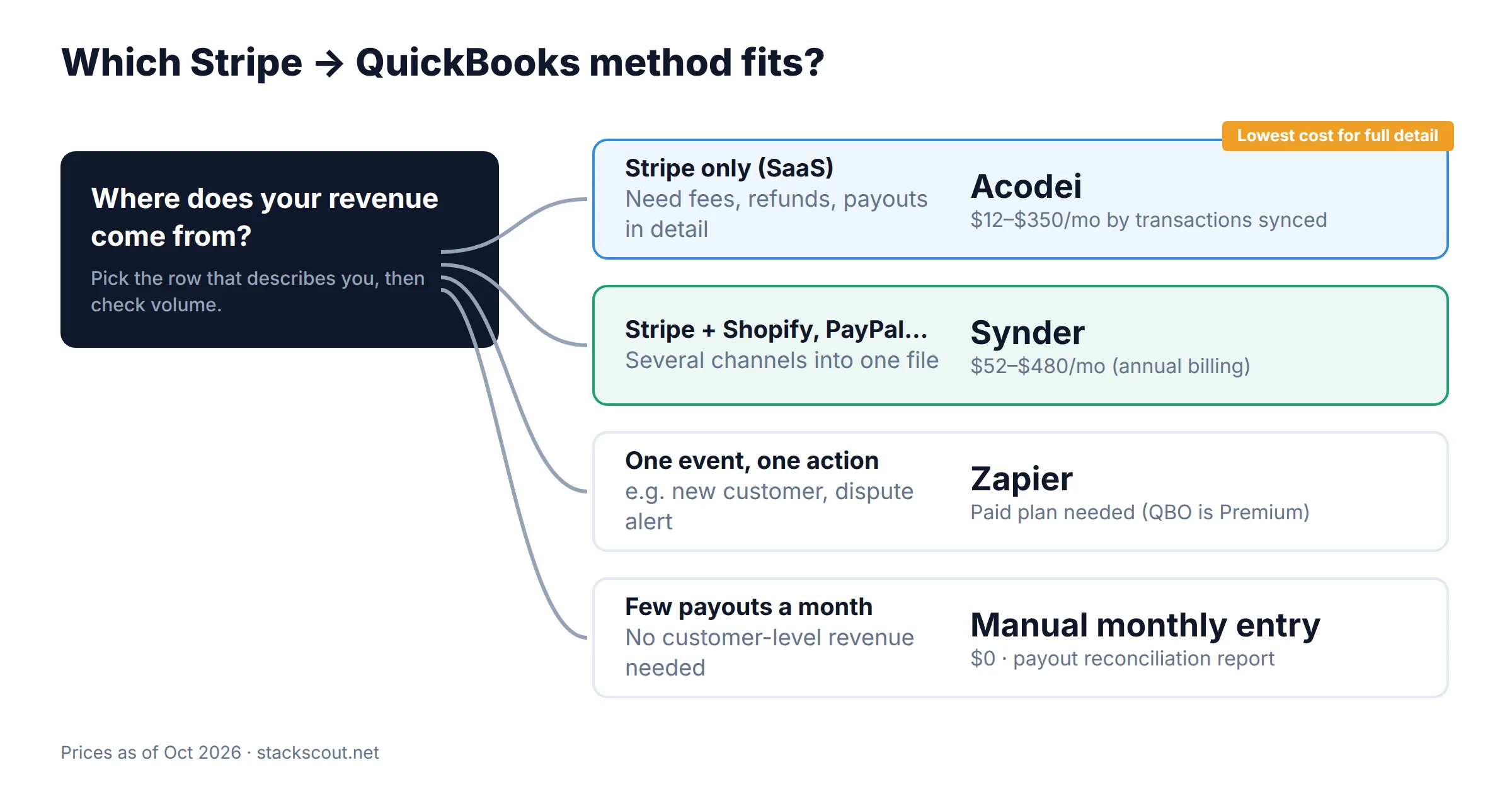
Acodei (QuickBooks Sync by Acodei): the QuickBooks connector Stripe's own docs point to. It costs $12–$350/month based on how many transactions you sync, and it's the cheapest way to get full detail (gross sales, fees, refunds, and payouts) at SaaS volumes.
Synder: $52–$480/month on annual billing. Pick it if Stripe is one of several sales channels (Shopify, PayPal, Amazon) that all need to land in the same books.
Zapier: Good for pushing a single Stripe event into QuickBooks, such as creating a customer or marking an invoice paid. It's a poor fit for full accounting because fees and payouts have to be rebuilt by hand. QuickBooks Online is a Premium app on Zapier, so you'll need a paid plan.
Whichever tool you pick, set up a Stripe clearing account before you connect anything. Then make sure each Stripe payout is matched in the bank feed, never added. That one habit prevents most of the double-counted revenue we see in Stripe + QuickBooks setups.
What this integration actually has to do
A lot of guides treat "connect Stripe to QuickBooks" as a data-copy problem. It's really an accounting problem, and here's why. Stripe sends you net payouts. Your revenue is gross.
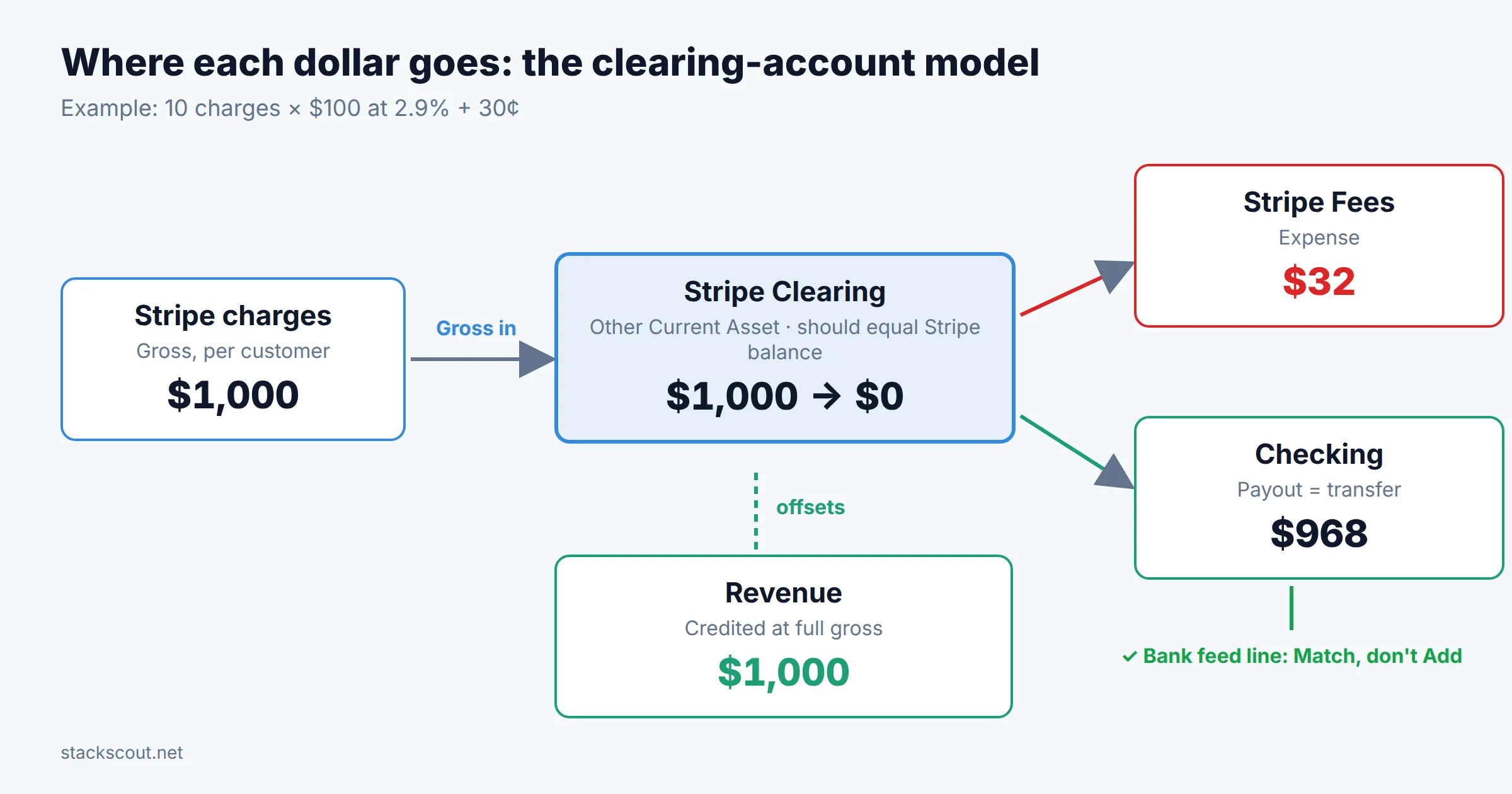
Say ten customers each pay you $100. Stripe keeps its fee and sends the rest to your bank, often days later and combined with other days' sales. With Stripe's standard US card pricing of 2.9% + 30¢ (checked on stripe.com in October 2026), each $100 charge costs $3.20 in fees. So you sold $1,000, paid $32 in fees, and got a single $968 bank deposit.
If the only record in QuickBooks is that $968 deposit, revenue is understated by $32 and the fee expense is missing. Over a year, that adds up to thousands of dollars of misstated revenue and expense, plus a mess for whoever closes the books. A proper integration records four things separately:
Gross sales, ideally by customer and product, so revenue reports mean something.
Stripe fees, as an expense (usually "Merchant account fees" or "Stripe fees").
Payouts, as a transfer from a Stripe holding account to your bank, not as new income.
The clearing-account model. Every Stripe event posts here first, and the payout leaves as a transfer that matches your bank line.
Prerequisites
QuickBooks Online, any paid plan. All the connectors below work on Simple Start ($38/month) and up. Two plan details matter. Multi-currency starts at Essentials ($85/month). Class tracking starts at Plus ($140/month), and you'll want it if you split revenue by product line. Our QuickBooks Online pricing breakdown covers the August 2026 price increase.
Stripe account admin access. The connector authorizes through OAuth, so whoever connects it needs an Administrator role in Stripe.
Automatic payouts in Stripe (recommended). Stripe's Payout reconciliation report works only with automatic payouts. With manual or instant payouts, Stripe can't tell you which transactions went into each payout.
A cutover date. Pick the first day of a month that hasn't been closed yet. Everything before it stays as-is, and everything after it comes from the connector. This is the main defense against duplicates (see Trap 4).
The three methods compared
Prices below were checked on each vendor's official pricing page or documentation on October 10, 2026.
Criteria
Acodei (QuickBooks Sync)
Synder
Zapier
Manual (bank feed + JE)
Entry price
$12/mo (100 tx)
$52/mo annual, $65 monthly
Pro from $19.99/mo annual (750 tasks)
$0
~1,000 transactions/mo
$50/mo (Scale1K)
Essential, from $103/mo annual
Depends on steps per Zap (see below)
Not practical
How volume is counted
Each sale, refund, payout, invoice, and invoice payment = 1. Failed payments aren't counted.
Every transaction except processing fees counts against the balance
Every action step that runs = 1 task
—
Fees recorded separately
Yes
Yes
Only if you build it
Monthly lump sum
Payout = transfer to bank
Yes
Yes
No (DIY)
Yes, by hand
Daily summary mode
Yes, on paid plans
Summary Sync
No
—
Stripe invoice sync
Paid plans
Yes
Manual mapping
No
Other sales channels
Stripe only
30+ (Shopify, PayPal, Amazon…)
Any Zapier app
—
Trial
14 days, card required
15 days, no card
Free plan, but QBO is a Premium app
—
Best for
SaaS and Stripe-only businesses
Multi-channel sellers
Single-event workflows
<30 payouts/mo, gross detail not needed
Choose by where your revenue comes from first, then by volume.
Step zero: set up the accounts before you connect anything
Most broken Stripe setups we've looked at in our research share one problem. The connector was switched on first, and the chart of accounts was sorted out afterward. Create these accounts in QuickBooks first (Settings ⚙ → Chart of accounts → New):
Account
QuickBooks type
What posts to it
Stripe Clearing
Other Current Assets (or Bank, see note)
Gross charges in; fees, refunds, and payouts out. The balance should equal your Stripe balance.
Stripe Fees
Expense
Processing fees, dispute fees, and Stripe Billing/Tax fees
Sales / Subscription Revenue
Income
Gross sales. Split by product if you report that way.
Refunds & Chargebacks
Income (contra) or Expense
Refunded amounts and lost disputes
Stripe Negative Payouts (optional)
Other Current Assets
When refunds exceed sales and Stripe debits your bank
Undeposited Funds vs a dedicated clearing account. Acodei's documentation offers both. Undeposited Funds (now labeled "Payments to deposit" in QuickBooks) takes no setup, but its daily balance won't match Stripe because fees post only on payout day. A dedicated "Stripe Holding" asset account matches Stripe's balance report to the penny, but you have to post an opening-balance entry on your cutover date. Acodei advises against a Bank-type account because users often pick the same account for both "deposit to" and "holding," which breaks reconciliation. For a SaaS company that closes monthly, a dedicated asset account is worth the one-time setup.
What the entries should look like
Here's the ten-charge example from above, posted the way a correct integration posts it. If your connector's output doesn't add up to this, something is wrong.
1 · Sales (10 charges, posted individually or as one daily summary) Day 1
Account
Debit
Credit
Stripe Clearing
$1,000.00
Subscription Revenue
$1,000.00
2 · Processing fees (10 × $3.20) Day 1
Account
Debit
Credit
Stripe Fees
$32.00
Stripe Clearing
$32.00
3 · Payout (a transfer, not income) Payout day
Account
Debit
Credit
Checking
$968.00
Stripe Clearing
$968.00
After the payout, Stripe Clearing is back to $0 for these charges. Revenue shows $1,000, fees show $32, and the bank shows $968. When the $968 line arrives in your bank feed, you match it to entry 3. You don't add it as a deposit.
Method 1: Acodei (QuickBooks Sync by Acodei)
Stripe-only businessesLowest cost for full detail
Price (Oct 2026)
Scale100 $12 · Scale250 $20 · Scale500 $30 · Scale1K $50 · Scale2.5K $75 · Scale5K $100 · Enterprise10K $150 · up to Enterprise250K $350/month. Annual = 10× monthly, plus a year of historical-data credits.
Counted as
Each sale, refund, payout, invoice, and invoice payment. Failed and incomplete payments don't count.
Trial
14 days, card required. A Free tier also exists: accounts fall back to it if you don't upgrade after hitting your limit.
Acodei is the QuickBooks Online connector that Stripe's own documentation names for accounting integrations. It's also the app most Stripe users find when they search "QuickBooks" in the Stripe App Marketplace. It syncs sales, fees, payouts, refunds, invoices, customers, products, and taxes. It supports per-transaction or daily-summary sync and works with every Stripe Connect type.
Install from the Stripe side. In the Stripe Dashboard, open the App Marketplace, search "QuickBooks," and install QuickBooks Sync by Acodei. You can also sign up at acodei.com and connect Stripe from there.
Authorize QuickBooks Online. Sign in to Intuit and pick the right company file. If you're an accountant, double-check this, because Acodei bills each QuickBooks company separately.
Choose the holding account. Pick "Stripe Clearing" (dedicated asset) or Undeposited Funds, based on Step zero. If you go with the dedicated account, post the opening-balance entry first.
Map the accounts. Sales go to your income account (or to items/products if you use multiple product mapping), fees to Stripe Fees, refunds to your refunds account, and payouts to your checking account. Set the Clearing Refunds account that the onboarding wizard asks for, so negative payouts don't pile up.
Choose sync granularity. Per-transaction sync gives customer-level detail. Daily summary posts one entry per day, which keeps high-volume files manageable. For a B2B SaaS company with a few hundred invoices a month, per-transaction sync is usually readable. Once you're into thousands of small charges, switch to daily summary.
Turn on invoice sync only if QuickBooks isn't already creating those invoices. If you invoice in Stripe Billing, sync the invoices. If you invoice in QuickBooks and Stripe only collects the payment, leave it off (see Trap 2).
Set the start date to your cutover date and run a test day. Compare the QuickBooks Stripe Clearing balance with Stripe's balance for the same day before you let it run unattended.
Pros
Cheapest full-detail option up to roughly 5,000 transactions a month
Unlimited users and Stripe accounts on every paid plan
Stripe only. Other processors need a separate tool.
Multicurrency has to be turned on by their team, and zero-decimal currencies such as JPY aren't supported
Monthly plans pay extra for historical data
Bulk re-syncs over 100 transactions cost extra
On Acodei's 3-day grace period: if you don't upgrade, the account drops to Free and syncing pauses until the 1st of the next month. To fill the gap you then buy historical data, priced per month of volume (for example, $18 flat for a month with 101–250 transactions). Size your plan for your busiest month, not your average one.
Method 2: Synder
Multi-channel sellers
Price (Oct 2026)
Basic $52/mo annual ($65 monthly), up to 500 sales tx · Essential from $103 ($129), up to 3,000 · Pro from $240 ($299), up to 20,000 · Pro Max from $480 ($599), up to 40,000 · Premium custom.
Counted as
"Any transaction except processing fees," which includes refunds and payouts
Trial
15 days, no card. All purchases are non-refundable after that.
Synder uses the same clearing-account model. Every Stripe payment, fee, and refund posts to a clearing account, and Synder then records the payout as a transfer of the exact net amount to your checking account, so the bank-feed line pre-matches. What sets it apart is breadth. One Synder account can run Stripe, Shopify, PayPal, Square, and Amazon into the same QuickBooks file using the same logic, and the Essential plan and above add NetSuite, Sage Intacct, and Intuit Enterprise Suite as destinations.
Create a Synder account and choose QuickBooks Online as the accounting platform, then authorize your company file.
Add Stripe as an integration. Basic includes 2 integration slots, and Essential and above are unlimited. Your accounting platform doesn't use a slot.
Choose Per Transaction or Summary Sync. Per Transaction creates a sales receipt or invoice payment for each charge. Summary Sync posts daily journal-style totals. Decide before the first sync. Changing modes later means cleaning up entries already posted in the old format.
Review the default mapping. Confirm which clearing account Synder will use for Stripe (use the one you created in Step zero if it's offered). Point fees to your Stripe Fees account, and point the payout destination to the bank account Stripe actually pays into.
Set the import start date to your cutover date. Historical import uses up the same transaction balance.
Check the import frequency. Basic imports daily, and Essential and above import hourly. If your team reconciles the bank feed every morning, daily is fine.
Pros
One tool covers Stripe and 30+ other sales channels
Higher tiers can sync to NetSuite and Sage Intacct, which helps if you outgrow QuickBooks
Built-in duplicate detection and rollback
No-card trial
Cons
About 4× Acodei's price at similar Stripe-only volume (Basic $52 for 500 vs Scale500 $30)
Refunds and payouts use up the transaction balance, so high-refund businesses hit the cap early
Basic's support queue may take "over 2 weeks" to begin complex investigations, per Synder's own pricing page
Basic has 1 user
Method 3: Zapier (and why it's usually the wrong tool for this)
Zapier's Stripe integration has 16 triggers, including New Charge, New Payment, New Invoice, New Refund, New Dispute, Checkout Session Completed, and subscription events. Its QuickBooks Online integration can create and update invoices, sales receipts, customers, payments, and expenses. On paper, that's enough to build a sync.
In practice, there are three structural gaps:
Fees aren't a separate event. Stripe records the fee on the balance transaction behind a charge. Check your trigger's test record. If you don't see a fee field, you'll need a lookup step to fetch it before you can post the expense.
Payouts don't line up with charges. A single payout combines many charges, refunds, and fees. Building the "transfer from clearing to checking" entry means adding up what went into each payout, and that's the job the payout reconciliation report and the dedicated connectors already do.
Cost per event adds up. QuickBooks Online is marked as a Premium app on Zapier, so the free plan won't work. Each action step that runs is one task. A Zap that creates a sales receipt and a fee expense uses 2 tasks per charge, so 400 charges a month comes to 800 tasks, already past Pro's 750-task tier ($19.99/month annual). See our Zapier pricing guide for the full tier and overage math.
Where Zapier does make sense: when a connector handles the accounting, and you want a side workflow that the connector doesn't cover. Examples:
New Stripe customer → find or create the QuickBooks customer, so names and emails match before the connector posts the first sale.
New Dispute → Slack alert to finance + a task to upload evidence. Nothing is written to QuickBooks.
Checkout Session Completed → create a QuickBooks estimate or invoice for a non-Stripe service add-on that your team bills separately.
Don't let Zapier and a sync app both write sales to QuickBooks. If a "New Charge → Create Sales Receipt" Zap is still running after you install Acodei or Synder, every charge gets booked twice. Turn off old Zaps before cutover. If you're choosing an automation platform for the side workflows, see Make vs Zapier vs n8n. They all count usage differently.
Fallback: the manual monthly entry (no app)
If you have few payouts, don't need revenue by customer, and an accountant closes the books monthly, you can skip a connector:
Connect your bank (the account Stripe pays into) in QuickBooks Banking as usual.
At month end, open Stripe's Payout reconciliation report for the month and download the Summary CSV. It groups each payout's contents by reporting category: charges, refunds, fees, and so on.
Post one journal entry for the month. Debit Stripe Clearing for gross charges and credit Revenue. Debit Stripe Fees and Refunds, and credit Stripe Clearing for each.
Categorize each payout in the bank feed as a transfer from Stripe Clearing, not as income.
Reconcile Stripe Clearing to the report's ending balance. Money that hasn't paid out yet should equal Stripe's "Ending balance reconciliation" total.
This takes about 30 minutes a month once you have a template. It stops scaling once you need customer-level revenue, sales-tax detail, or anyone outside finance reading the reports.
Five ways Stripe revenue gets double-counted (and the fix for each)
Double-counted revenue is the most common problem when someone first connects Stripe to QuickBooks, and it's easy to miss. Revenue simply looks great until someone reconciles. Here are the patterns, in rough order of how often they show up in QuickBooks Community threads and connector help docs.
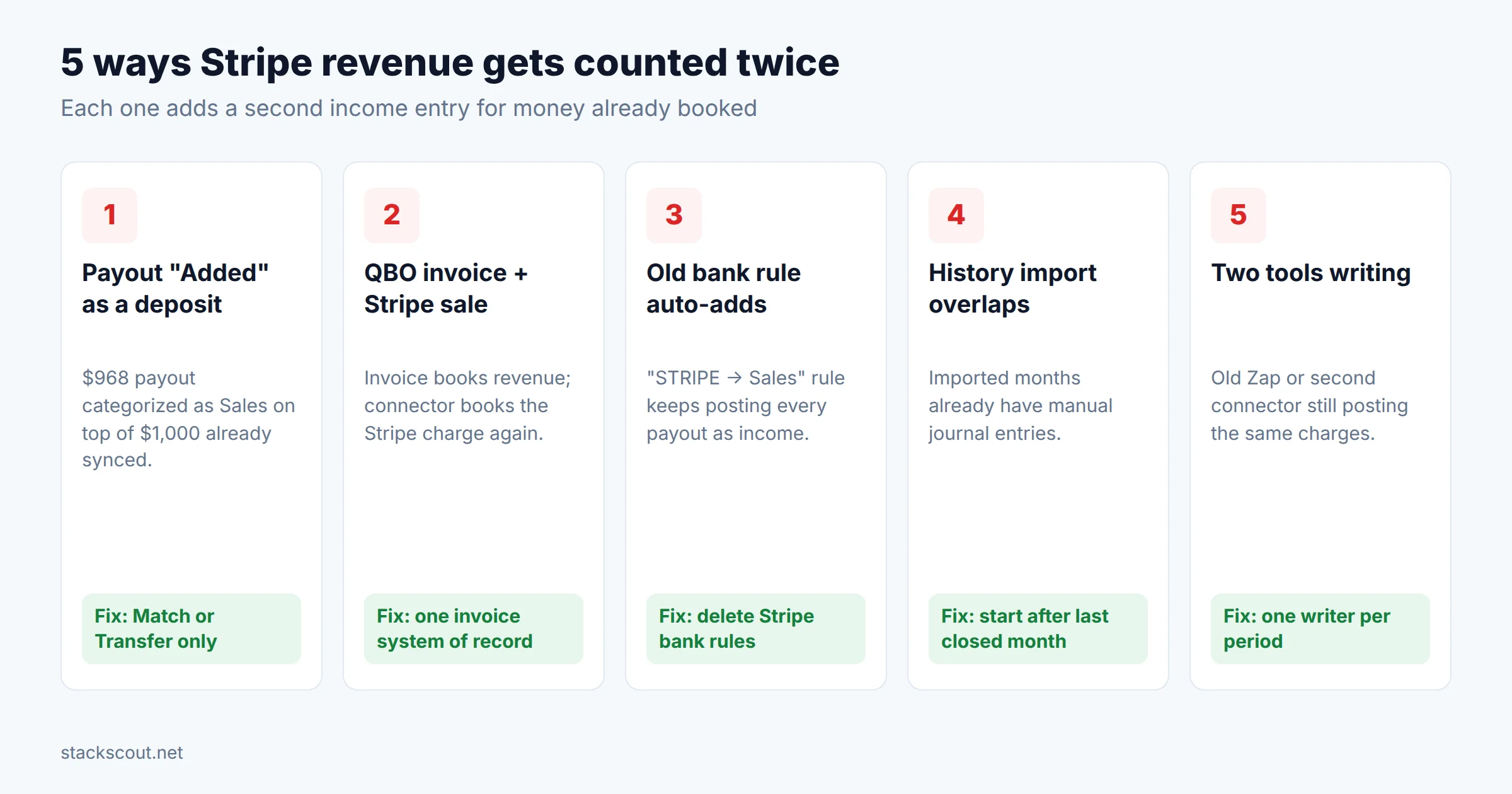
Each trap creates a second income entry for money you already recorded.
1
The payout gets "Added" as a deposit
The connector already posted $1,000 of revenue. Then someone in Banking sees the $968 Stripe payout and clicks Add with category "Sales." Now revenue is $1,968.
Fix: Payouts are always Match (to the connector's transfer) or Transfer (from Stripe Clearing). Neither one should ever create income.
2
QuickBooks invoice and Stripe charge both book the sale
You invoice in QuickBooks and the customer pays through a Stripe payment link. The QuickBooks invoice already recognized the revenue, and the connector then records the Stripe charge as a new sale.
Fix: Choose one system of record for invoices. If QuickBooks creates invoices, the Stripe charge has to post as a payment against that invoice. Both Acodei and Synder can do this with invoice matching. Otherwise, move invoicing to Stripe Billing and sync invoices from there.
3
A bank rule auto-adds Stripe payouts
A bank rule from your pre-connector days ("if description contains STRIPE → Sales") keeps auto-adding every payout. It runs quietly, so nobody notices for months.
Fix: Go to Banking → Rules, then delete or edit any rule that matches "STRIPE." Acodei's docs specifically warn that rules and auto-add break payout matching.
4
The historical import overlaps months already booked by hand
You connect the app on October 10, import history from January 1, and January through September already have manual Stripe journal entries.
Fix: Set the import start date to the first day after your last closed and reconciled month. If you need customer-level history, reverse the manual entries for the overlap period before importing.
5
Two tools write to the same books
An old Zap, a trial of a second connector, or switching Acodei between Undeposited Funds and a dedicated account mid-period. Acodei's documentation says mixing both models in the same period "will create duplicate revenue and mismatched balances."
Fix: One writer per Stripe account per period. When you switch tools or holding accounts, delete the old tool's entries for the period first, then re-sync.
A 2-minute check you can run every month: the Stripe Clearing balance in QuickBooks on the last day of the month should equal Stripe's balance on the same date. If QuickBooks is higher, look for duplicates (Traps 1–5). If it's lower, the usual causes are missed refunds, dispute fees, or a negative payout sitting in the wrong account.
A note for SaaS companies: annual plans and deferred revenue
None of these connectors recognizes revenue over time. If a customer prepays $12,000 for an annual plan, the connector books $12,000 of income on the day of the charge. Under ASC 606, most of that is deferred revenue that you earn month by month. You have three options:
QuickBooks Online Advanced ($340/month) includes revenue recognition schedules. It's the only QBO tier that does.
Stripe Revenue Recognition computes the waterfall on the Stripe side ($25/month on the US monthly plan for up to $10K of monthly volume, plus 0.25% above). Your accountant then posts a monthly deferral journal entry from its report.
In the integration settings, send prepaid annual charges to a Deferred Revenue liability account instead of income, if your connector's product mapping allows it. Then release one-twelfth each month.
Troubleshooting
"Stripe Clearing has a balance that won't go away"
A small leftover balance is usually a fee that posted after the payout (with Undeposited Funds) or a negative payout. Run Stripe's Payout reconciliation report for that payout, download the Itemized CSV, and compare it line by line with the QuickBooks register.
"The payout amount in QuickBooks doesn't match my bank line"
Check for instant payouts. Stripe says it can't tell which transactions an instant payout covers, so the connector may split or group them differently. Also check whether a dispute or Stripe Capital repayment was deducted from that payout.
"Customers are duplicated in QuickBooks"
The connector creates a new customer when the name or email doesn't match exactly. Merge the duplicates in QuickBooks, then make the customer name match on both sides. The Zapier "find or create customer" step above helps here. The same matching problem shows up in CRM syncs; our HubSpot–QuickBooks guide covers the contact-vs-company version of it.
"Sync stopped mid-month"
You've probably hit your plan's monthly limit. Acodei pauses after its 3-day grace period, and Synder needs more sync balance. Upgrade, then backfill the gap. Don't post the missing days by hand, or you'll create Trap 4.
"Multi-currency charges post at the wrong amount"
Multi-currency needs QuickBooks Essentials or higher. Stripe also charges +1% when currency conversion is required (+1.5% for international cards). Make sure the connector records the converted settlement amount as the bank side and the FX difference as a fee or exchange gain/loss, not as revenue.
Alternatives to connecting Stripe at all
QuickBooks Payments instead of Stripe for invoice collection. It records natively with no connector. As of September 2026, card invoices are 2.99% and ACH is 1%, compared with Stripe's 2.9% + 30¢ on cards and 0.8% for ACH Direct Debit. It's only practical if you don't rely on Stripe Billing, Checkout, or Stripe's API.
Xero instead of QuickBooks. Stripe lists a free Xero bank-feed app for payments, fees, payouts, and refunds. Our QuickBooks vs Xero comparison covers whether a switch makes sense.
Accounting tools with a native Stripe connection, such as some of the newer SaaS-focused platforms in our accounting software for SaaS roundup. They're worth a look if you're picking an accounting system now rather than keeping QuickBooks.
FAQ
Does QuickBooks Online have a native Stripe integration?
No. QuickBooks staff have said in the Intuit Community that syncing Stripe transactions to QuickBooks Online requires a third-party connector, found under Apps → Find Apps. One community member in the same thread pointed out the irony: QuickBooks offers PayPal and Square connections, but not Stripe.
How do I connect Stripe to my bank account?
In the Stripe Dashboard, open Payout settings (Settings → money management) and add or edit the bank account. The bank account's currency must match your payout currency. This controls where Stripe sends money. It's separate from the QuickBooks connection, but the account you choose here is the one you'll map as the payout destination in your connector.
Is there a free way to sync Stripe with QuickBooks?
Yes, the manual method: connect your bank feed, then post one monthly journal entry from Stripe's Payout reconciliation report. Acodei also has a Free tier, but its pricing page doesn't say what that tier includes, so expect to pay at least $12/month (100 transactions) for automated detail.
Should Stripe fees be recorded as an expense or netted against revenue?
Record them as an expense, usually "Merchant fees" or "Stripe fees." Netting them against revenue understates your top line and makes processor costs invisible. All the connectors in this guide post fees separately by default.
Can I connect multiple Stripe accounts to one QuickBooks company?
Yes. Acodei includes unlimited Stripe accounts on paid plans. Give each Stripe account its own clearing account so the balances can be reconciled separately. On Synder, check how extra Stripe accounts count against your plan's integration slots (Basic has 2).
Methodology
We checked every price and plan limit on the vendor's official pricing page or documentation on October 10, 2026: acodei.com/pricing and docs.acodei.com, synder.com/pricing, zapier.com/apps/quickbooks/integrations/stripe, and stripe.com/us/pricing. QuickBooks plan prices come from Intuit's pricing page, verified on October 8, 2026 for our QuickBooks pricing article. Accounting treatment follows the vendors' own documentation of their clearing-account models (Acodei's holding-account guide, Synder's clearing-account help article) and Stripe's reporting docs. We did not run these tools on a live company file. Where a vendor doesn't publish something (for example, the contents of Acodei's Free tier), we say so rather than guess.