The short version
HubSpot's Slack app is available on all HubSpot products and plans, including the free CRM. You install it from the HubSpot Marketplace in four steps. To do that, you must be a HubSpot Super Admin (or have App Marketplace permissions) and an administrator of the Slack workspace. Once it's connected, you get notifications, slash commands, record previews and record-linked channels without paying for anything else.
Custom, conditional Slack messages need HubSpot Workflows, which require a Professional or Enterprise subscription. Use Zapier or Make if you are on Free or Starter, if the channel has to be chosen from your data, or if the flow involves more than one Slack workspace or other apps. Use the table below to pick a method, then go to the matching section.
Which method should you use?
Before you set anything up, match what you need to the cheapest method that covers it. Based on HubSpot's Knowledge Base as of October 2026:
| If you need… | Native Slack app | HubSpot workflow Slack actions | Zapier / Make |
|---|---|---|---|
| HubSpot plan required | Any, including free | Professional or Enterprise | Any (connects through HubSpot's API) |
| Personal alerts (mentions, task reminders, form submissions) | Yes | Yes | Yes |
| Live chat in a Slack channel, with replies from the thread | Yes | No | Build it yourself |
| A Slack channel per deal or company that gets activity updates | Yes (associated manually) | Yes (Create a Slack channel action) | Build it yourself |
| Conditional messages with record properties and action buttons | No | Yes | Yes (no HubSpot action buttons) |
| Recurring report or dashboard posts | Yes (public channels only) | No | Yes |
| Start an automation from a Slack message or mention | No | Yes (Agent Hub workflows) | Yes |
| Channel chosen from a property value at run time | No | Only via branches to fixed channels | Yes |
| More than one Slack workspace | No (one workspace per HubSpot account) | No | Yes |
Rule of thumb: start with the native app. Add workflow actions when you need conditional, data-rich alerts and you already pay for a Professional hub. Use Zapier or Make for the three cases in When to go beyond native.
- Which method should you use?
- What the integration does
- Prerequisites: plans & permissions
- Method 1 — Install the native Slack app
- Set up notifications & channels
- Slash commands, shortcuts & Breeze
- Method 2 — HubSpot workflow Slack actions
- When to go beyond native (Zapier / Make)
- Method 4 — API & webhooks
- If something doesn't work
- FAQ
What the integration does
Most sales and support teams spend their day in Slack, while the events they need to act on happen in HubSpot. Someone submits a demo form, a deal moves stage, or a website visitor starts a live chat, and nobody sees it until they open the CRM. The integration pushes those events into Slack and lets people create or update HubSpot records from Slack.
According to HubSpot's documentation, the Slack app built by HubSpot covers five areas:
- Notifications: HubSpot user notifications, live chat conversations, and call and note activity, sent as Slack DMs or channel messages.
- Records from Slack: you can turn any Slack message into a HubSpot task, ticket or note. You can also create contacts, companies and deals through Slack shortcuts.
- Search and previews: slash commands and a search shortcut. Pasted HubSpot links show a preview with properties you choose.
- Record-linked channels: you can link a deal or company to a Slack channel so that new calls, notes, emails, tasks and meetings on that record are posted there.
- Breeze Assistant in Slack: @mention HubSpot's AI assistant to summarize records, find deals with no next step, or create and update records. HubSpot's Marketplace listing labels this as beta.
What the integration does not include is a general-purpose sync engine. It can't send alerts to different channels based on data you choose, connect a second Slack workspace, or chain actions across other apps on lower HubSpot plans. Most "the integration is broken" complaints come from expecting one of those.
Prerequisites: plans & permissions
Most failed installs are caused by missing permissions. Check these before you start:
| Requirement | What you need |
|---|---|
| HubSpot plan (Slack app) | Any HubSpot product and plan, including free |
| HubSpot plan (workflow Slack actions) | Professional or Enterprise (workflows are a paid feature) |
| HubSpot plan (help desk ticket sync) | Service Hub Professional or Enterprise |
| HubSpot permissions to install | Super Admin, or App Marketplace permissions |
| HubSpot permissions to build workflows | Edit permissions for workflows (Publish permissions to turn them on), or Super Admin |
| Slack plan | Free, Standard or Plus (according to the Marketplace listing) |
| Slack permissions | Administrator of the workspace you're connecting. If you aren't one, ask a Slack admin to install it or to give you access. |
| Workspaces | Only one Slack workspace can be connected to a HubSpot account |
HubSpot sends personal notifications to the Slack user whose email matches the HubSpot user's email. If they don't match, HubSpot sends that user a "map your email" prompt the first time a notification fails. They have to verify their Slack email before DMs will arrive. Only users who have mapped their emails appear in the workflow action's user picker.
Method 1 — Install the native Slack app (step by step)
These steps follow HubSpot's "Connect HubSpot and Slack" article (last updated August 20, 2026):
-
Open the HubSpot Marketplace
In HubSpot, click the Marketplace icon in the top navigation bar, then select HubSpot Marketplace.
-
Find the Slack app
Search for Slack and select it. Check that the listing says "Built by HubSpot."
-
Click Install
Click Install. Slack opens in a new browser tab.
-
Approve the permissions in Slack
Review the requested permissions and click Allow. HubSpot asks for public and private channel content so live chat works, and for member information so it can match Slack actions to the right HubSpot user.
-
Confirm the connection
You're sent back to HubSpot, and Slack emails you to confirm that the HubSpot app is installed. You can find the integration in Settings → Integrations → Connected Apps → Slack.
-
Add the HubSpot app to private channels
Public channels work right away. Each private channel you want to use must have the HubSpot app added separately. Until you do, it won't receive notifications and won't appear in workflow channel pickers.
-
Lock the install down
HubSpot recommends turning on Slack's Approved Apps setting so that people who aren't admins can't remove the HubSpot app from the workspace and disconnect the integration.
To disconnect, go to Settings → Integrations → Connected Apps → Slack, click Uninstall in the upper right, and enter the confirmation text.
Set up notifications & channels
Connecting the app is quick. Most of the value comes from how you set up notifications. HubSpot has three kinds of native notification, each configured in a different place.
1. Personal notifications (each user)
- Click the settings icon, then go to Notifications in the left sidebar.
- Open the Other apps tab.
- Under How you get notified, turn on the Slack switch.
- Under What you get notified about, expand a topic and select the notification types you want, such as mentions, form submissions, and task assignments and reminders.
- Click Save.
These arrive as messages from the HubSpot app in Slack. Each rep sets up their own, so send the team a short "turn these three on" list instead of letting everyone guess.
2. Live chat into a channel (admin)
- Go to Settings → Integrations → Connected Apps → Slack → General settings.
- Under Bring conversations to Slack, turn on the switch next to an inbox.
- Choose the Slack channel and the Inbox Channel Types to sync.
Your team can then reply to live chats from the Slack thread, and the whole conversation is still logged in the HubSpot inbox. To reply this way, the HubSpot app has to be in the channel and the user's email has to be mapped. In a private channel, the person who installed the app also has to be a member.
3. Record-linked channels (per deal or company)
On a deal or company record, open the Slack card in the right sidebar and click Associate Slack channel. You can pick an existing channel or create a new public or private one, then choose which activity types to post there. New calls, notes, emails, tasks and meetings logged on that record then show up in the channel. You can link several records to one channel.
This handles the common "one channel per big deal" request without any extra tools. Two limits are worth knowing. Only emails sent, forwarded or replied to from HubSpot, or logged to HubSpot, are posted. And when you merge records, the channel association comes from the primary record.
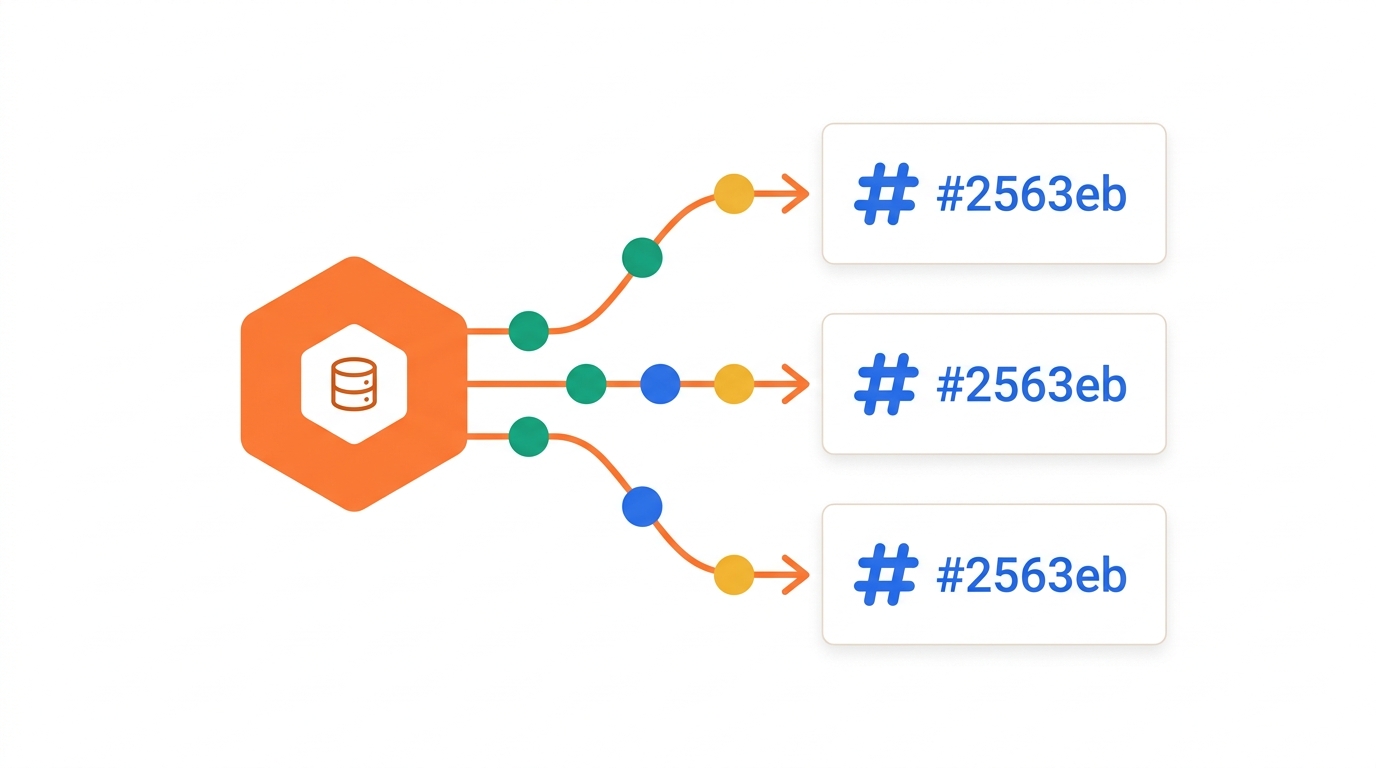
A guideline that keeps Slack readable is one event type, one channel, one owner. Don't send every event into one busy #sales channel. Start with two or three useful alerts, see how the team responds, then add more.
Slack-first revenue stack
Don't have HubSpot's CRM set up yet?
HubSpot's free CRM includes the Slack app, so you can connect them and send your first deal alerts to Slack today. You only need to upgrade if you want workflow automation.
Slash commands, shortcuts & Breeze in Slack
Notifications bring HubSpot events into Slack. Commands and shortcuts let people act on them without leaving Slack. The search commands HubSpot currently documents are:
/hs-search-contact,/hs-search-company,/hs-search-deal,/hs-search-my-deal,/hs-search-ticket,/hs-search-task,/hs-search-kband/hs-search-playbookfind a record or article and share it in the channel./hs-report-companyposts a company's key figures: associated contacts, deals by stage, website visits and page views./hs-buying-committeeposts a company's buying committee.
You can also do the following:
- Hover over any Slack message, open the ⋮ menu and choose Create a task, Create a ticket or Create a note. Attachments and links are copied too. The ticket form supports up to 10 fields.
- Use the Run Shortcut icon to create contacts, companies and deals, or to search across record types.
- Update a deal's stage from Slack with Update deal stage. The Add association action isn't available for deals.
- Choose which 3–6 properties appear when someone pastes a HubSpot record link, under Connected Apps → Slack → Settings → Link Unfurling.
Breeze Assistant only responds when you @mention it in a channel or thread (@HubSpot(Breeze)), or when you message it from the app's Messages tab. It doesn't monitor channels. Before you can use it, Breeze Assistant has to be turned on in your HubSpot AI settings. If your workspace is connected to several HubSpot accounts, run /hs-breeze-select-portal to choose one.
Several HubSpot accounts can share one Slack workspace. Slack then asks which account a command should use. If there are more than four accounts, it shows a Choose account dropdown. It doesn't work the other way: one HubSpot account still connects to only one Slack workspace.
Method 2 — Custom Slack messages via HubSpot Workflows
Native notifications cover standard events. Use the workflow action for conditional, data-rich alerts, for example "post in #deals-won when a deal over a set amount closes, and include the owner and amount." This requires a Professional or Enterprise subscription.
-
Open or create a workflow
Go to Automation → Workflows, then open an existing workflow or create a new one with the trigger you need, such as a deal stage change, a lead score threshold or a lifecycle stage change.
-
Add the Slack action
Click the + icon, expand Integrated apps → Slack, and select Send a Slack notification.
-
Choose recipients
Choose any mix of users (only those with mapped emails are listed), channels (private channels only appear after you add the HubSpot app to them), and existing owners of the enrolled record.
-
Write the message and add context
Write the message, add @mentions, and use Properties to include with message to add fields such as amount, stage or owner.
-
Add action buttons
Optionally add buttons such as Create a note, Log call, Log meeting, Log email, Create task, Call contact, Email contact, Update [object] or List associations. HubSpot also adds a Summarize [object] with Copilot button. Click Save, then turn the workflow on.
Two related workflow features are on the same plans:
- Create a Slack channel (also under Integrated apps → Slack) creates a public or private channel for each enrolled company or deal. You can use a personalization token in the channel name (80 characters max, lowercase letters, numbers, hyphens and underscores only), invite users, and choose which activity updates to post.
- Slack triggers in Agent Hub workflows start a workflow when a Slack user is mentioned, a message is posted or sent, someone replies in a thread, or a member joins a channel. These triggers are available on Professional and Enterprise. For private and Slack Connect channels, you have to add the HubSpot app first.
The Send a Slack notification action posts to channels you pick when you build the workflow. You can branch the workflow to send different records to different fixed channels. But there's no field where you type a channel name taken from a property at run time, such as "post to whatever channel the deal's region property says." That case belongs in an iPaaS or the API.
When to go beyond native: three cases for Zapier or Make
Between the Slack app and Professional-tier workflows, HubSpot now covers most Slack needs natively. Recurring report posts, per-deal channels and Slack-triggered automations no longer need another tool. In our research, three situations still do:
Case 1 — You're on HubSpot Free or Starter and need conditional alerts
Every custom Slack message, every created channel and every Slack trigger described above depends on workflows, which start at Professional. If all you need is "post to #enterprise-leads when a form submission's company size is over 500," upgrading a hub can cost more than an iPaaS. Zapier or Make can watch HubSpot for new or updated records, filter on a property and post a formatted Slack message on any HubSpot plan. The main thing you lose is HubSpot's built-in action buttons in the message.
Case 2 — The destination channel depends on your data
Say you run a Slack Connect channel for each of 200 customers, or a channel for each region, and want every renewal-date change posted in the right one. Natively, you'd need a workflow branch for each channel, and record-linked channels only receive activity updates (calls, notes, emails, tasks, meetings), not custom property alerts. In Zapier or Make, the channel is just another field. You can map it from a HubSpot property or look it up from a table, so one automation covers every channel.
Case 3 — More than one Slack workspace, or other apps in the flow
A HubSpot account connects to only one Slack workspace. That's a problem after an acquisition, or when support and sales use separate workspaces. An iPaaS can hold a separate Slack connection for each automation, so one HubSpot event can notify both workspaces. The same applies when Slack is only one step in a longer flow. Examples are a closed-won deal that also has to create a project in your PM tool and add a row to a finance sheet, or a flow that has to retry and log failures your way.
iPaaS strengths
- Works on any HubSpot plan
- Channel, workspace and message can all come from data
- Connects to thousands of other apps
- Most flows need no code
iPaaS trade-offs
- No HubSpot action buttons or Copilot summary in messages
- Two-way sync is fiddly to build and maintain
- Billed per task or operation, so costs grow with volume
- Another system to monitor when something fails without an error
To choose between the two platforms, see our full comparison of Zapier vs Make. To estimate what a HubSpot-to-Slack flow will cost at your volume, see the Zapier pricing breakdown and the Make pricing guide. If you're connecting Slack to Salesforce instead, see our Slack–Salesforce setup guide, which compares the same methods.
Recommended for data-driven routing
Need logic the native app can't express?
Zapier connects HubSpot and Slack on any HubSpot plan. It can choose channels from your data, notify more than one workspace, and pass each event on to the rest of your stack.
Method 4 — API & webhooks (for developers)
If even an iPaaS can't express the logic you need, for example custom interactive Block Kit messages, strict latency requirements or your own retry and audit rules, build against the APIs directly:
- HubSpot → Slack: subscribe to HubSpot webhooks (or use a workflow webhook action) for the events you care about, then post with Slack's
chat.postMessageusing Block Kit layouts. - Slack → HubSpot: handle Slack interactivity payloads (button clicks, modals) in your endpoint and write back through the HubSpot CRM API, for example
PATCH /crm/v3/objects/deals/{dealId}.
You then have to handle token refresh, rate limits, retries and uptime yourself. Only take this route when the flow is central to how the business runs.
If something doesn't work
- Nothing arrives in a channel: if it's a private channel, add the HubSpot app to it. If DMs are missing, check that the user's HubSpot and Slack emails match or have been mapped.
- Duplicate contacts or triggers that fire inconsistently: these usually come from overlapping syncs, a property being written by two processes at once, or re-enrollment settings, not from the Slack app.
- The integration disconnected without warning: someone may have removed the app in Slack. Reinstall it, then turn on Slack's Approved Apps setting.
For diagnosis steps and fixes, see our guide to Slack-HubSpot sync errors: duplicate contacts and missed triggers.
Frequently asked questions
Is the HubSpot–Slack integration free?
Yes. HubSpot lists the Slack app as available on all products and plans, including the free CRM. Workflow-based features (Send a Slack notification, Create a Slack channel and Slack triggers) need a Professional or Enterprise subscription. Help desk ticket sync needs Service Hub Professional or Enterprise.
Can I connect more than one Slack workspace to HubSpot?
No. A HubSpot account connects to one Slack workspace. You can connect several HubSpot accounts to the same Slack workspace, and Slack will ask which account each command should use. To notify several workspaces, use Zapier, Make or the API.
Does the integration sync data two ways?
Partly. From Slack you can create tasks, tickets, notes, contacts, companies and deals, and update deal stages. Workflow notifications can include buttons that update properties. With Service Hub Professional or Enterprise, help desk tickets sync both ways: ticket properties and Slack thread replies flow back to HubSpot. Field-level sync of other data between Slack and HubSpot still needs an iPaaS or the API.
Why don't my teammate's notifications work when mine do?
Usually because their emails don't match. HubSpot sends DMs to the Slack user whose email matches the HubSpot user's email. If they differ, your teammate needs to follow HubSpot's "map your email" prompt and verify it in Slack.
Can I send a Slack alert to a different channel depending on the deal?
Partly. You can link a deal or company to its own channel (or create one with a workflow) to get activity updates, and you can branch a workflow to send records to different fixed channels. If the channel has to come from a property value at run time, you need Zapier, Make or the API.
Can HubSpot post a weekly pipeline report to Slack?
Yes, natively. Share a report to Slack and choose Yes, this is a recurring email to post it on a schedule. HubSpot's documentation notes that reports can only be shared to public channels, not shared (Slack Connect) channels.
How we evaluated this
This guide was rewritten in October 2026 from HubSpot's Knowledge Base articles "Connect HubSpot and Slack" (updated August 20, 2026), "Manage notifications in Slack" (August 10, 2026), "Manage your records in Slack" (August 21, 2026), "Use Breeze Assistant in Slack" (October 19, 2026), "Set Slack event triggers with Agent Hub workflows" (September 16, 2026), "Sync and manage help desk tickets in Slack" (April 21, 2026), and the report-sharing article, along with the Slack listing on the HubSpot Marketplace. We checked the steps, plan requirements, permissions and command names against those pages. We didn't add prices for Zapier or Make here because they depend on volume; see our pricing guides linked above. HubSpot changes these features often, so check the plan requirement on your own subscription before you build on it.

Technology consultant with 10+ years in the Japanese tech industry. Specializing in SaaS evaluation, workflow automation, and B2B tool integration.